The Citizen Pay Dashboard
What the dashboard is for, how to sign in, and how to find your way around.
The Citizen Pay Dashboard is where you run the business. Watch payments come in, manage your places and terminals, connect your bank account, follow your payouts, invite your team. It opens in any modern browser, on a computer or a phone. Nothing to install.
Everyone uses the same dashboard: business owners, the admins they invite, and partner staff — sales people, who see only their Clients section, and technicians, who see only the Fleet of client terminals they look after. No account yet? Start with Getting started.
Signing in
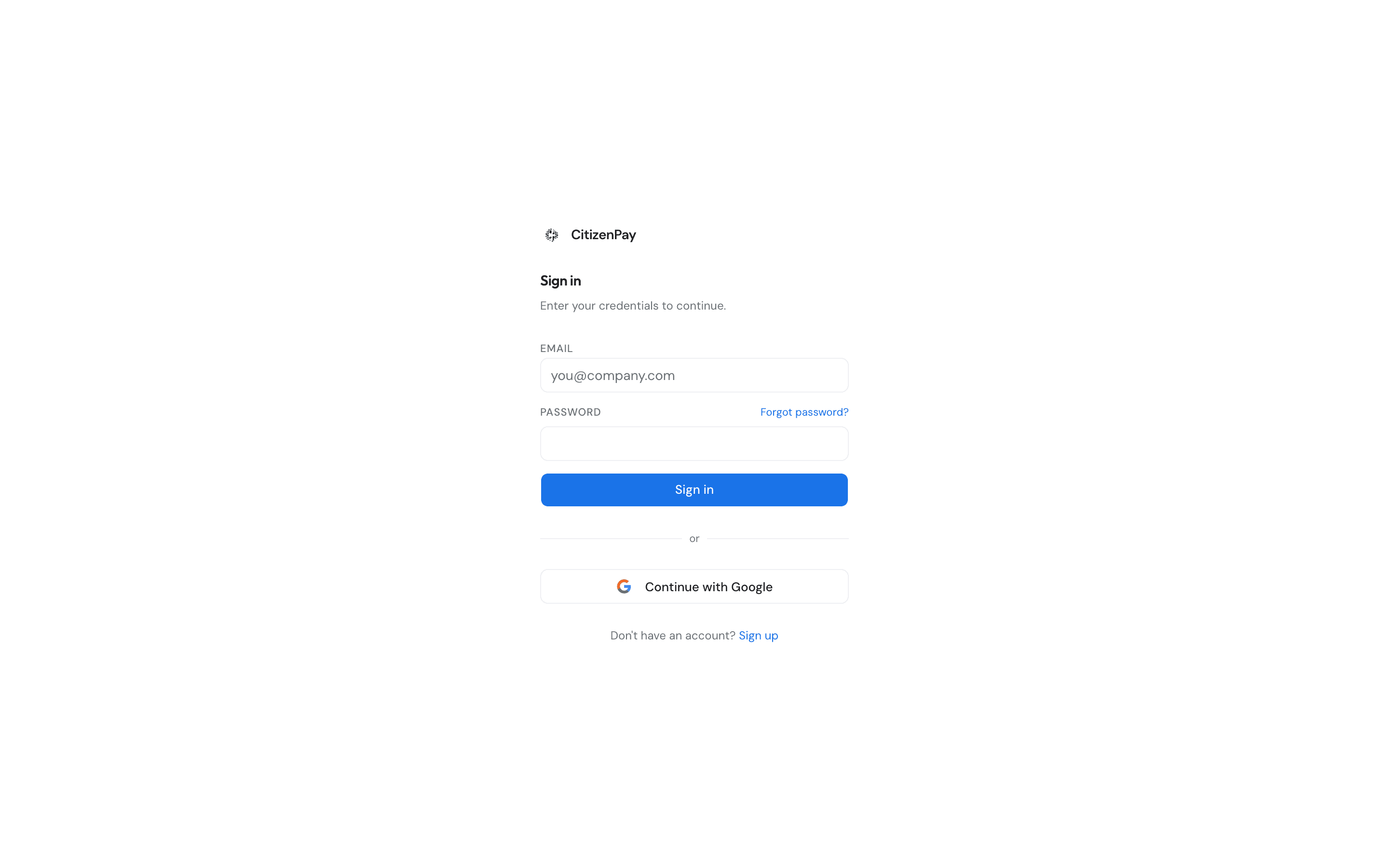
Go to the dashboard sign-in page and either:
- Enter your Email and Password and press Sign in, or
- Press Continue with Google to sign in with your Google account.
If you clicked a link to a particular page while signed out, you go straight back to that page once you are in. Otherwise you land on your organization's Overview page.
No separate sign-in needed on the sign-up page
If you enter the email and password of an existing account on the Create your account page, you are simply signed in — no duplicate account is created.
Forgotten your password?
- On the sign-in page, press Forgot password? next to the Password field. If you already typed your email, it is carried over for you.
- On the Verify your email page, confirm your email address and press Send verification email.
- Open the email titled Verify your email and press Verify email. Check your spam folder if it does not arrive. You can ask for at most one email per minute.
- You land back on the dashboard, signed in, on the Set your password page. Choose a new password (at least 6 characters), confirm it, and press Set password & continue.
Invited team members set their first password on this same page — see Team.
If a link says it has expired
Links we email you work once, and they do not last forever. If you click an old one you get a This link has expired page: enter your email and press Send a new link. The new link picks up where the old one was headed — an invitation you were accepting, for example.
Finding your way around
Every page looks the same: the menu sits in a sidebar on the left, which you can collapse using the toggle in the slim bar along the top.
Where you land
The dashboard's front door does not stay put: open it and you are forwarded straight into your first organization's Overview. Members with the sales role go to Clients instead, and members with the technician role to Fleet — in both cases the whole of their dashboard. From there the switcher below moves you between organizations.
If your account does not belong to any organization yet there is nowhere to forward you to, and the page stays blank. That is what it looks like before you have a business — sign up to create one, or ask whoever invited you to check the invitation went to this address.
The menu
Down the sidebar you will find Overview, Analytics, Organization, Places, Terminals, Banking, Payment methods, Token, Payouts, Reports, Notifications and Team. Token is for owners and admins: it is where your business issues its own token and invites other businesses to accept it.
Two of those look across the whole business rather than at one place, and both are for owners and admins: Analytics is every sale in every place over any period you pick, and Terminals is every machine you own, with what each one is doing right now.
Three more entries appear only if they apply to you:
- Clients — for partner (reseller) organizations, with a badge counting your client businesses once there is at least one. See the partner docs.
- Fleet — for partner organizations as well: every terminal of every client you look after, in one table. Every member of the partner sees it. See Fleet.
- Hosted — when your organization hosts at least one place for another business, with a badge counting them. See Hosting.
Next to Banking there is a small icon telling you how your bank connection is doing:
- Green check — bank connected and payment requests activated. All good.
- Amber clock — still being set up; the authorisation or the activation has not come through yet.
- Red alert — the connection has expired. Reconnect from the Banking page.
- Grey dot — banking not set up yet.
- No icon at all — we have not heard back about your banking status yet, either because the page has only just opened or because the check did not come through. Open Banking to see where you really stand.
Switching between businesses, and searching
Click the sidebar header (the Citizen Pay logo and your organization's name), or press Cmd+K on a Mac or Ctrl+K on Windows, to open the search box. Its field reads "Search organizations, VAT, places...".
- Before you type anything, it lists your organizations under Switch organization, with a checkmark next to the one you are in, plus a New organization entry that starts the sign-up steps for another business. Underneath, a reminder of what it can find: "Search organizations by name or VAT, and places by name."
- Start typing and the results split into Organizations and Places. The matching part of the text is highlighted, so you can see why a result is there. A match on something other than the name says so underneath — Legal name or VAT, with the matching value — while a plain name match needs no label. Nothing matching says "No results found."
- On a wide enough window, a strip along the bottom lists the keys: "↑↓ navigate", "↵ open" and "esc close".
Pick an organization and the whole dashboard switches to it. Pick a place and you go straight to that place's page.
Getting help from inside the dashboard
The ? button at the right of the top bar opens a help panel beside whatever you are looking at, showing the page of these docs that covers it. Press it again to close. On a wide screen the panel sits alongside the page; on a narrow one it slides in over it.
A few features carry their own small ? icon next to them — pressing that one opens the panel on the section that answers that control, rather than the page you happen to be on. Move to another page and the panel follows you back to the page's own documentation.
The panel's header has an Open in the docs site button, which opens the same page full-size in a new tab — handy for reading something longer, or for sharing a link with a colleague.
If the panel comes up empty it shows This help page didn't load and "Check your connection, or read this page on the docs site.", with a link out. The Open in the docs site button works in that state too.
Language and signing out
At the bottom of the sidebar:
- The language picker (globe icon) switches the dashboard between English, Français and Nederlands.
- The Account menu holds Sign out, which signs you out and returns you to the sign-in page.
Who can do what
Everyone in an organization has one of four roles. Owners and admins see the same dashboard from day to day — the difference only shows up when managing the team.
- Owner — everything, including the full team controls (giving someone the owner role, changing roles).
- Admin — the whole dashboard, but cannot give someone the owner role or change roles.
- Sales — partner organizations only. Sees just the Clients section and nothing else.
- Technician — partner organizations only. Services the terminals of the partner's clients: sees just Fleet, plus the client list to find the way there. See the technician role.
Inviting people, changing roles, removing members and leaving are all covered on the Team page.
Explore the dashboard
Getting started
Create your account and organization, or accept a partner-created account.
Overview
Your home page: takings, payouts, and alerts at a glance.
Banking
Connect your bank account and activate payment requests.
Places
Set up the locations where you take payments.
Payouts
Follow the money from payments to your bank account.
Billing
Your Citizen Pay invoices: what they cover and how to pay them.
Team
Invite your team and manage roles.
- Issued by Citizen Pay
- docs.citizenpay.eu
- Title
- The Citizen Pay Dashboard
- Lang
- EN
- Sheet
- 015 / 035