Products and stock
Build the menu customers see when they scan your QR code, and keep an eye on what you have left.
Every place has a Products tab and a Stock tab. Products is where you decide what customers see after they scan your QR code. Stock is where you count what you have, set alerts for when you're running low, and look back at every change.
Open a place from Places in the sidebar, then pick the Products or Stock tab.
Deciding what customers see
The Customer view card at the top of the Products tab — "Choose what customers see after they scan the QR code." — has two switches:
- Show menu — "Display your menu items so customers can pick what they want to pay for."
- Allow custom amount — "Customers can also enter their own amount instead of picking from the menu." It stays greyed out until Show menu is on.
Turn both off and customers just type an amount to pay — no menu at all. Either switch takes effect the moment you flip it; there is no Save button to press.
Menu hidden
With Show menu off, the Menu items card carries an amber reminder — "Menu is currently hidden from customers. Turn on "Show menu" above to make these visible." — and the Products tab in the tab bar picks up a small eye-off icon labelled Menu hidden. Your items are kept exactly as they are; turn Show menu back on to make them visible again.
If your place is a top-up point
A few places are set up by Citizen Pay as top-up points, where customers load credit instead of buying from a menu. On those, both switches read off but no eye-off icon appears on the tab. Turning Show menu on there replaces top-up mode with an ordinary menu straight away, and this card cannot put it back — get in touch with Citizen Pay support before you flip it.
Your menu items
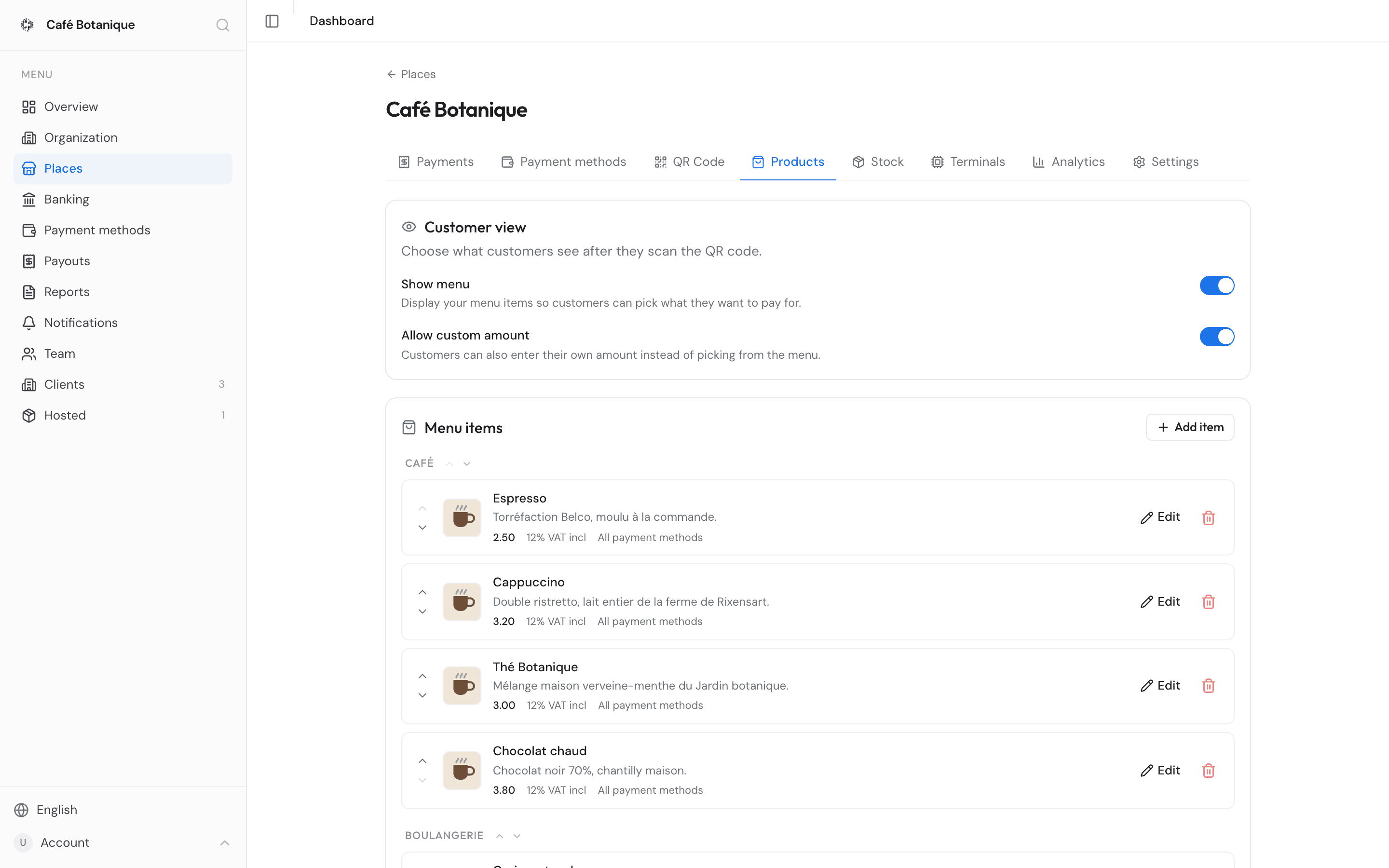
The Menu items card lists everything you sell, grouped by category, with anything you left uncategorised gathered under "Uncategorized". Before you've added anything it reads "No items yet. Add your first one to start building your menu."; if the list can't be fetched it says "Failed to load items." instead, and reloading the page is the fix.
A collapsed row gives you the item's image, name, description, price, a VAT summary (for example "21% VAT incl"), stock chips with the back and shelf counts (green, amber or red, marked "low" or "out"), and which payment methods it accepts ("All payment methods" or a list of symbols). Items you've hidden from customers carry a small eye-off icon, and an item you haven't named yet shows in italics as "Untitled item". The price is a bare number — 2.50, not €2.50 — because a place can take more than one currency.
Adding and editing an item
- Press Add item. A blank item appears right away and opens for editing with the cursor in Name. It has no category yet, so it lands at the end of the "Uncategorized" group — and that group sits wherever its own first item falls, which can be near the top rather than at the bottom (see Reordering your menu). It starts at price 0, VAT 0 with VAT included on, not hidden, and accepting every payment method — so from the second it exists it is a real, sellable line on your menu. Fill it in or delete it.
- Fill in the fields:
- Image — press the picture square to pick a JPG or PNG up to 5 MB. It uploads as soon as you choose it, showing your preview and a spinner while it goes. There is no control to take an image off again; you can only replace it with a different one.
- Name — required, up to 120 characters. The box suggests "e.g. Coca Cola".
- Category — anything you like, up to 60 characters ("e.g. Drinks, Food"). This text is what groups the item — see Reordering your menu.
- Description — up to 500 characters.
- Price — stored rounded to whole cents. A comma works as well as a dot, so 2,50 and 2.50 mean the same thing, and 0 is perfectly valid if you want to list something free. A negative number is not, and neither is an empty box: the editor answers "Price must be a positive number." either way and stops saving until you fix it.
- VAT % — a whole percentage from 0 to 100. Leaving it empty is fine and simply means 0%.
- VAT included — a switch: is VAT already part of the price?
- Hidden — a switch that takes the item off the customer menu but keeps it in your list.
- Accepted payment methods — "Accepted payment methods (leave empty to accept all place payment methods)". One chip per method the place takes; the ones you switch off are struck through. This is the only per-item control over where something sells — there is no way to offer an item on one terminal but not another.
- Press Done to close the editor.
Text you type saves itself after a short pause (you'll see "Saving..." then "Saved"); switches and payment-method chips save the moment you touch them. If you tick every one of the place's payment methods, the item is stored as accepting all of them — so any method you add to the place later is accepted automatically too. If the place has no payment methods yet, the chips are replaced by "No payment methods configured."
Done stays greyed out until the row is valid
Done is disabled while the name is empty or the price or VAT is invalid, so a half-finished row can't be collapsed out of sight. On a brand-new row nothing is flagged yet — the button is simply greyed out until you've given the item a name. Once you've started editing, a red message points at whatever is wrong; fix that and the button comes back. To reopen a finished item later, press Edit on its row.
Reordering your menu
Every row has a pair of chevrons on the left, Move up and Move down. They move an item within its own category only — an item never hops into another group — and a chevron greys out when there is no neighbour left in the same category to swap with.
Categories have their own chevrons beside the category name, Move category up and Move category down. They only appear once you have two or more categories; with everything in one group there is nothing to reorder.
Group order follows the first item in each group, which means "Uncategorized" is not pinned to the bottom. It sits wherever its first item happens to fall — often right at the top, if the first item you ever added had no category. Use the category chevrons to put it where you want it.
To move an item from one category to another, open it with Edit and change the Category text. Typing a category that doesn't exist yet creates the group; clearing the field drops the item into "Uncategorized".
Deleting an item
Press the trash icon at the right-hand end of the item's row — it's labelled Delete item — then confirm with the Delete button that appears next to Cancel.
If the row is still sitting there afterwards, the delete didn't go through. A failure on the collapsed row passes silently, so open the item with Edit and delete it from the editor instead, which does report the problem.
No undo
Deleting a menu item is immediate once you confirm — it cannot be undone.
When something doesn't save
The editor keeps a small status down its right-hand side, under the Hidden switch: "Saving...", then "Saved" for a couple of seconds, or "Couldn't save" in red when something went wrong. Where the problem is a field you can fix, the message says which:
- "Name is required."
- "Price must be a positive number." — also what you get for an empty box, or for text that isn't a number at all.
- "VAT must be between 0 and 100."
- "Image must be a JPG or PNG file."
- "Image is larger than 5 MB. Please choose a smaller file."
- "Could not upload image. Please try again."
Anything else — a dropped connection, say — shows the plain "Couldn't save". Nothing you typed is thrown away, so correct the field or try again and it saves on the next pause.
Keeping count of your stock
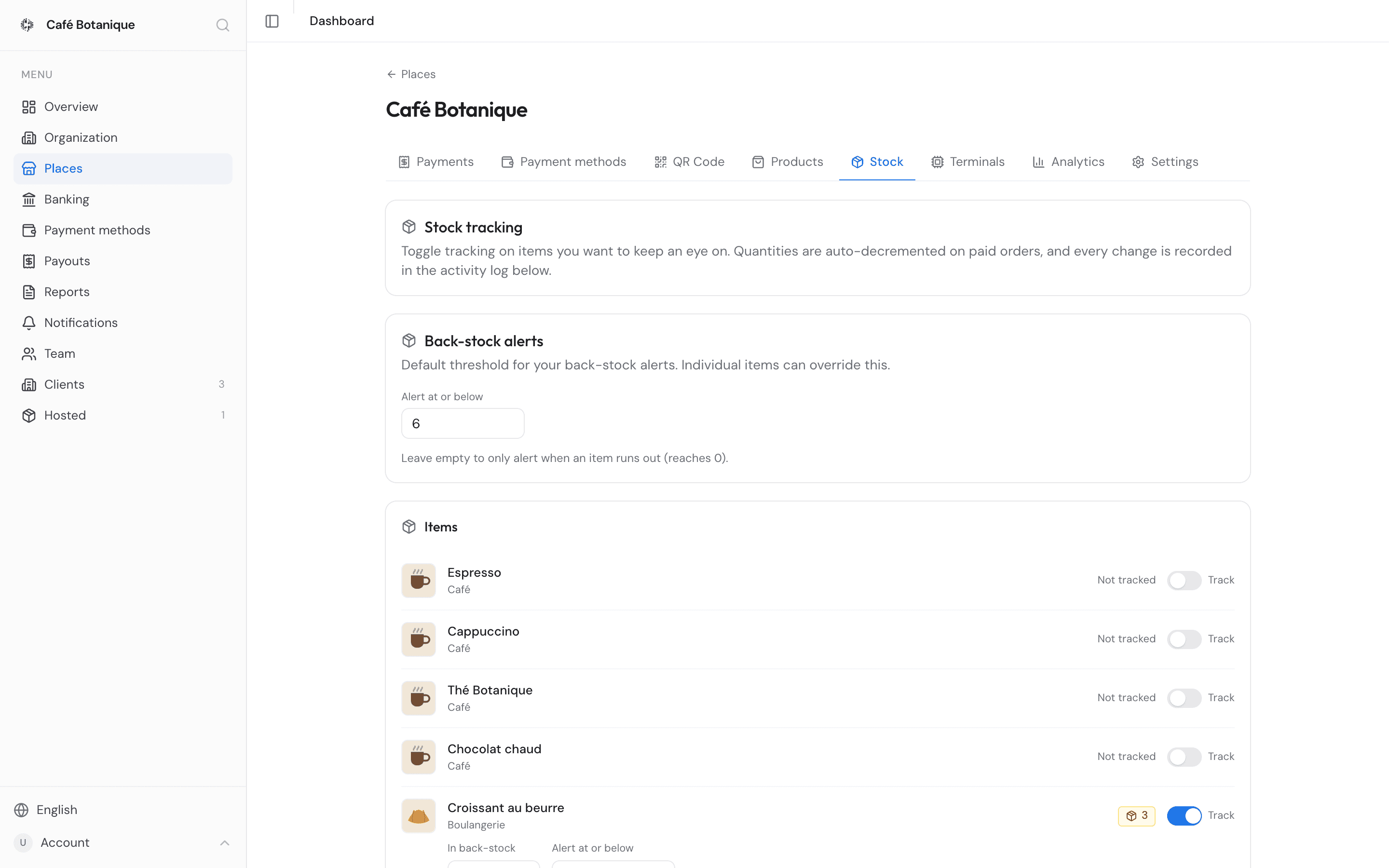
The Stock tab opens with a Stock tracking card that sums the whole page up: "Toggle tracking on items you want to keep an eye on. Quantities are auto-decremented on paid orders, and every change is recorded in the activity log below." Tracking is per item, and off until you switch it on.
Count before you switch tracking on
Turning Track on sets that item's count to 0 immediately — it never asks how many you have. Until you type the real number, anyone looking at the Stock or Products tab sees the item as out of stock, in red. So have the figure ready: switch Track on and type the count straight away.
What you count here is your back-stock — what you're holding in reserve. If another business hosts your place — a co-working space holding your products on site, say — they look after the shelf count (what's actually out on display) and its alert level from their own Hosted view, and you can read the shelf figure here but not change it.
The back-stock isn't quite yours alone, though. You decide which items are tracked and what the alert levels are, but a host can also correct the back-stock quantity from their Hosted view, because that stock physically sits at their address. Their corrections land in the same activity log as yours.
When to be told you're running low
The Back-stock alerts card — "Default threshold for your back-stock alerts. Individual items can override this." — sets the default alert level for this place. Type a number into Alert at or below (the box suggests "e.g. 3") and it saves itself. Leave it empty and you'll only hear about an item once it hits zero: "Leave empty to only alert when an item runs out (reaches 0)."
Use whole numbers, zero or above. Anything else turns the field red with "Must be a non-negative whole number." and nothing is saved until you correct it.
This default covers your back-stock only. There is no place-wide default for shelf alerts anywhere in the dashboard: a host sets shelf levels item by item, from their Hosted view.
An item's colour is decided by the first of three numbers that exists: its own alert level, then this place default, then 0. An item with no number set anywhere therefore only ever turns red at zero, and never goes amber.
Where low stock shows up
These levels feed two things outside the Stock tab:
- The Low stock (N) banner on your organization overview — "Items at or below their alert threshold. Click an item to restock." Clicking an item takes you to that place's Products tab rather than its Stock tab, so switch tabs to edit the count.
- The Back-stock alerts email — "Email me when an item's back-stock falls to or below its threshold." Everyone on the team chooses that for themselves under Notifications.
Both react to a count falling past its level, not to the number sitting there. So switching Track on, which starts an item at 0, raises neither one — and an item stays out of the banner until it drops past its level again after being restocked.
Item by item
The Items card lists every menu item with a Track switch. Until you flip it the row just reads "Not tracked". Switching it on starts the count at 0 — see the warning above — and gives you:
- A coloured chip with the quantity: green normally, amber at or below the alert level, red at zero. Unlike the chips on the Products tab, this one shows the number alone, without the "low" or "out" word.
- In back-stock — how much you're holding. Type the real figure in here. Every change is written to the activity log.
- Alert at or below — this item's own alert level, used instead of the place default. The placeholder shows the default you've set ("default: 3") or "0" when you haven't. Alert levels are a preference rather than a movement of stock, so changing one is not written to the activity log — only the quantity is.
- Host shelf — only when a host looks after shelf stock here: the shelf count with its alert level in brackets ("(alerts at ≤ 3)"), which you can read but not change.
Quantities and alert levels must be whole numbers, zero or above. There is no message when they aren't — the box simply outlines in red and quietly stops saving, so check the outline if a number you typed doesn't seem to stick.
Switching Track off stops counting the item and clears its own alert level, so it falls back to the place default if you ever switch tracking on again. The log records the two moves as "tracking enabled" and "tracking disabled".
If the card says "No items yet. Add items in the Products tab first.", build your menu on the Products tab before you set up stock.
Looking back at what changed
The Stock activity card — "Every change to back-stock and host shelf, including paid orders and manual edits." — lists every stock change, 25 at a time. Press Show more for older ones; the button disappears once you've reached the end. With nothing to show yet it reads "No stock activity yet."
Each entry tells you:
- whether it was your back-stock or the host shelf,
- which item,
- why it changed — "paid order", "manual edit", "terminal edit", "tracking enabled" or "tracking disabled",
- when it happened, plus any note,
- the before → after quantities, with the difference. Switching tracking on shows as "— → 0" and switching it off as "3 → —", because the item had no count at all on one side of the change.
You and your host share one log, so every movement on either side sits in the same list, in order. The log shows what changed, on which side, why and when — it doesn't display who, so no name appears against an entry. If you need to trace an edit back to a person, the timing and any note are what you have to go on.
- Issued by Citizen Pay
- docs.citizenpay.eu
- Title
- Products and stock
- Lang
- EN
- Sheet
- 020 / 035