Reports
Pull a full year of transactions and hand your accountant a CSV and a printable PDF.
Reports gives you a year of trading in one place. Pick a year, look over the summary sheet on screen, then hand your accountant the full transaction list as a CSV or the summary as a PDF.
Owners and admins can open this page. Members with the sales role cannot — they are sent elsewhere.
Pick a year
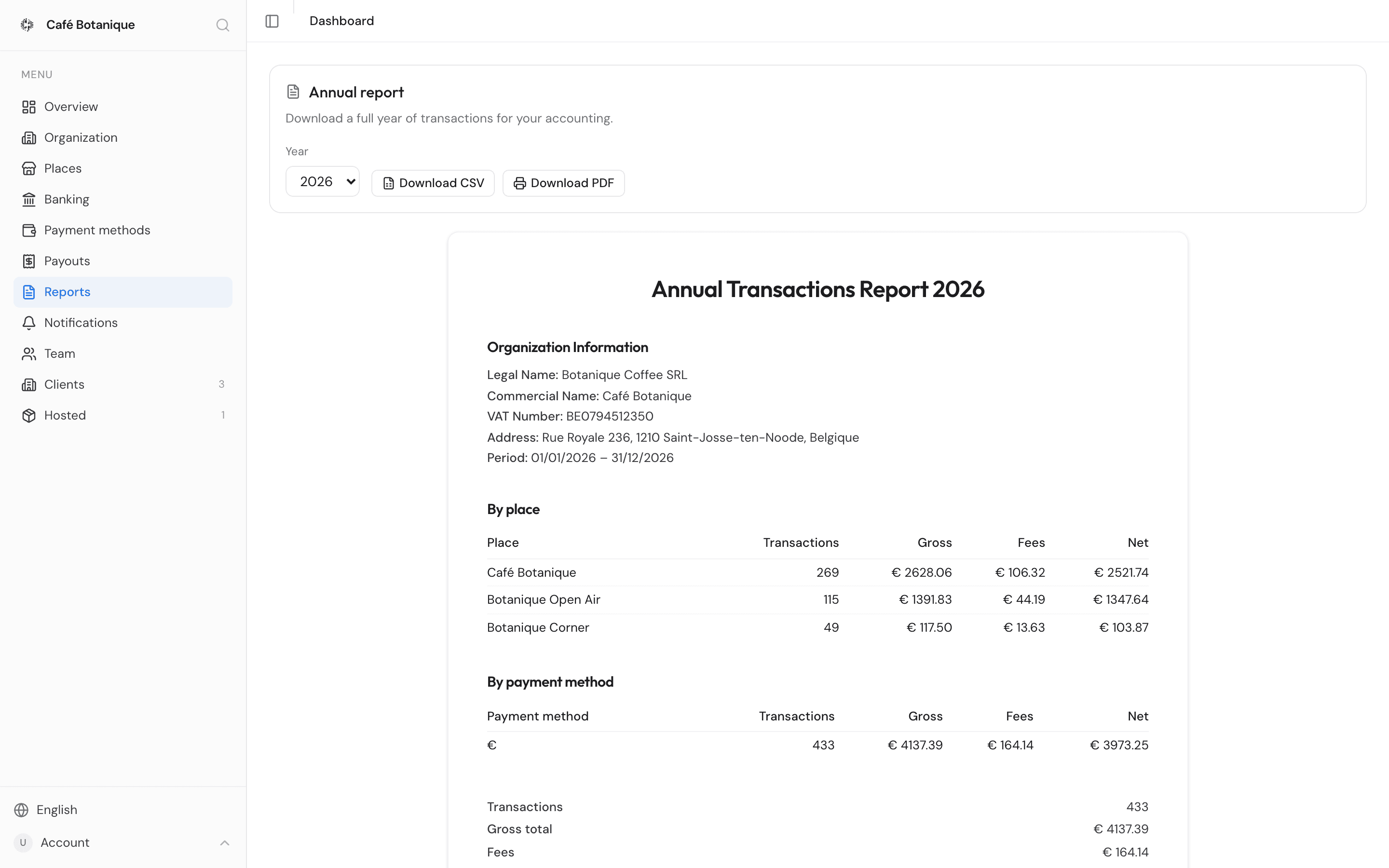
At the top sits the Annual report card ("Download a full year of transactions for your accounting."), with:
- Year — every calendar year from your first order to this one, most recent first. It starts on the most recent year. The list runs back to your first order that counts towards the report, so a year in which everything was cancelled does not open the list up any further (see What is counted). No orders yet? Only the current year is offered.
- Download CSV — the full transaction list for that year.
- Download PDF — prints the summary sheet, which you can save as a PDF.
Both buttons are greyed out while the report loads, and stay greyed out for a year with no transactions — you will see No transactions for {year} instead of the sheet. If the report cannot be loaded at all, you get Could not load the report. — reload the page and try again.
Whole calendar years only
A report always covers 1 January to 31 December. There is no way to ask this page for a shorter period: for a specific date range, use the Transactions CSV on the matching payout instead, which covers exactly the payout's period.
What is counted
The report is built to line up with your payouts:
- Only orders with status paid, refund or correction are counted. Refunds and corrections are subtracted, so they bring the gross and net totals down.
- An order belongs to the year it was completed — or, if it has no completion date, the year it was created. That is the same basis payouts use.
- Net is always Gross minus Fees.
Payment method means the currency paid with
In this report, "payment method" refers to the payment token or currency the customer paid with (shown by its symbol) — not a distinction such as card versus cash.
The summary sheet
Below the controls you get a receipt-style sheet headed Annual Transactions Report {year} — the same thing that prints. Top to bottom:
- Organization Information — your legal name, commercial name, VAT number and address as recorded on your Organization page, plus the period covered (01/01/{year} – 31/12/{year}). Your IBAN is not on this sheet; if you need it on paper, it is on the payout receipt.
- By place — one row per place, biggest gross volume first, with Place, Transactions, Gross, Fees and Net.
- By payment method — the same columns again (Payment method, Transactions, Gross, Fees, Net), grouped by what customers paid with. Euro payments show as €; a community currency shows the symbol its treasury is configured with.
- Summary — the year's transaction count, gross total, fees, and the net total in bold.
- A Citizen Pay footer with company details and a "Generated on" timestamp — the moment you opened the page.
Both tables are always there when the sheet is, because every counted order lands in exactly one place row and one payment-method row. All amounts are in euros.
Download the CSV
The sheet on screen shows totals only. For the individual orders, download the CSV — it is the only place that detail appears.
- Choose the Year.
- Press Download CSV.
Your browser saves a file named after your organization and the year, for example
my-cafe-transactions-2025.csv. Inside is one row per transaction, with the columns Order ID, Date,
Place, Payment Method, Type, Total, Fees, Net, Status and Description. Amounts are in euros to two
decimals, and refunds and corrections show as negative amounts, so the column totals match the
summary sheet.
One thing worth knowing before you send it on: Date is written the way your dashboard language writes dates, so the same year exported in English and in French gives you two differently formatted columns — unlike the payouts export, which always uses DD/MM/YYYY. Payment Method reads the same as on the sheet: € for euro payments, or the community currency's own symbol.
Print it or save it as a PDF
Download PDF goes through your browser's print dialog rather than handing you a ready-made file:
- Choose the Year and wait for the sheet to appear.
- Press Download PDF. The print dialog opens with everything but the report sheet — sidebar, header and controls — hidden.
- Print it, or pick your browser's Save as PDF option to keep a file.
Tip for your accountant
Send both files together: the PDF summary for the year-end figures, and the CSV so every total can be traced back to individual orders.
Related pages
- Issued by Citizen Pay
- docs.citizenpay.eu
- Title
- Reports
- Lang
- EN
- Sheet
- 029 / 035