Payment methods
See what your business can accept, connect your Viva card terminals, and choose what each place takes.
A payment method is something your customers can pay you with: euro payments straight from their bank (shown as €) and any community currencies — member credit that people top up once and then spend — issued by a treasury on the platform. The Payment methods page shows what your business accepts, and it is also where you link your Viva card terminals.
What you accept today
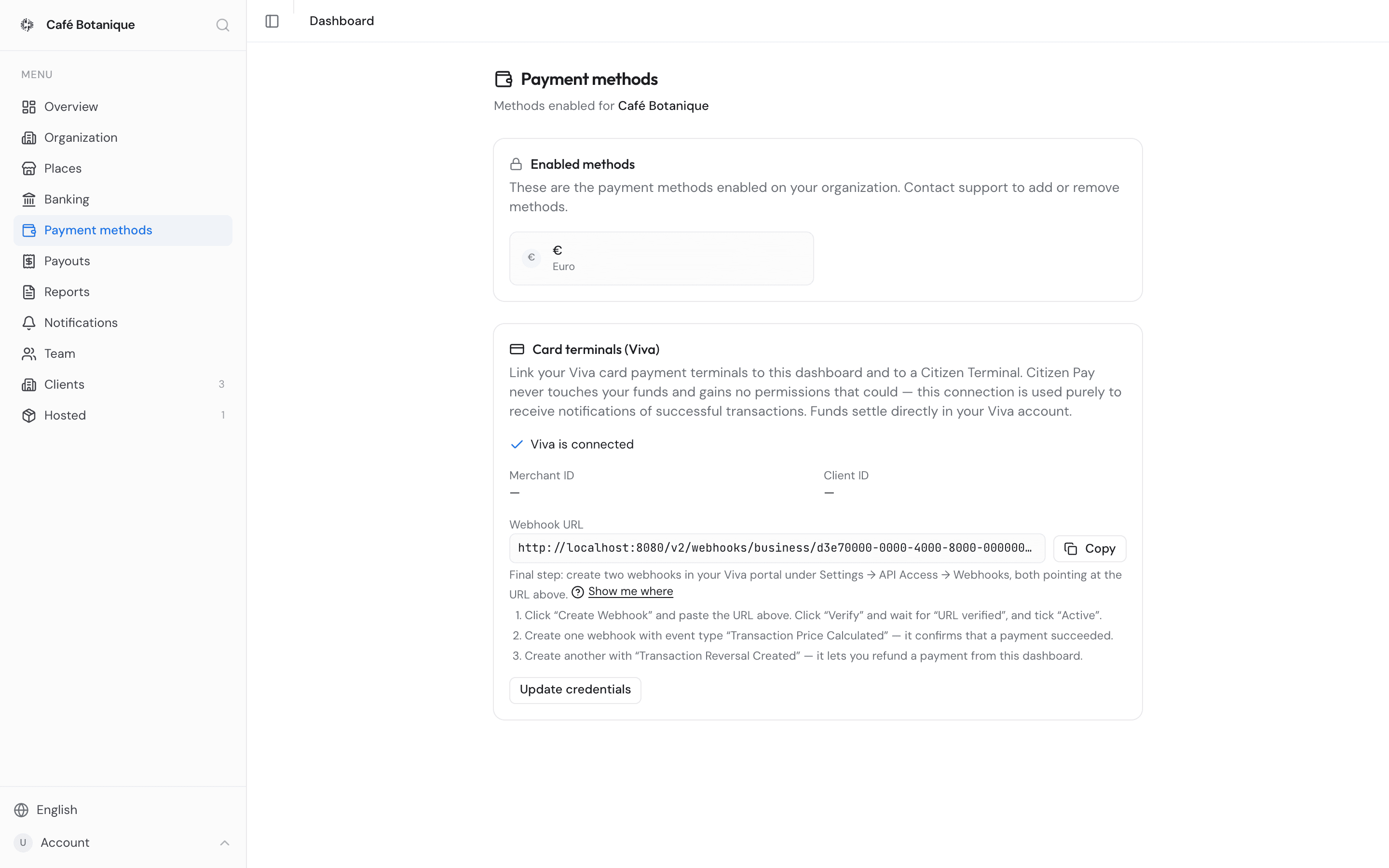
The page is headed Payment methods, with "Methods enabled for" and your commercial name underneath. The Enabled methods card below lists everything your business can take, one tile each with its logo, symbol and full name — a method with no logo gets a plain circle carrying the first character of its symbol. You cannot change this list yourself — hence the lock icon and the note "These are the payment methods enabled on your organization. Contact support to add or remove methods."
Methods are switched on for you by Citizen Pay support, or they appear on their own when you accept a treasury invitation (see below). Nothing enabled yet? The card says "No payment methods enabled yet." If the list cannot be loaded at all, the error takes the place of the tiles — reload the page and try again.
€ is the exception: nobody switches it on for you. Euro payments become available once you have connected your bank and activated payment requests on Banking — no support request and no treasury invitation involved. If € has disappeared from this card, that is the first place to look.
Removing a method leaves your places alone
Turning a payment method off for the business does not touch the places that already use it. They keep it configured, which is why a removed method resurfaces on each place as an amber Inactive payment methods chip instead of quietly disappearing.
One rarity worth naming: very occasionally a tile shows a long string starting 0x as both its
symbol and its name. That is an enabled method whose treasury record cannot be resolved, so the
token's address stands in for the missing symbol — and the same address will show up wherever that
method is named, exports included. Seeing 0x... in a spreadsheet always means this, never a
normally configured method. It is rare and nothing is broken on your side, but tell support so it
can be tidied up.
This page is for owners and admins. Sales-role members do not see it.
Connect your Viva card terminals
Take card payments on a Viva card terminal? Connect your Viva account, and every card payment you take shows up in this dashboard, on the place where the card terminal stands.
Notification-only connection
Citizen Pay never touches your funds and gains no permissions that could — the connection is used purely to receive notifications of successful transactions. Card payments settle directly in your Viva account, as before.
Everything happens in the Card terminals (Viva) card on the Payment methods page. Keep your Viva login at hand: you copy a few values from your viva.com account, and it takes about five minutes.
Take card payments
Until card payments fully work, the card shows Take card payments: "Four steps. Each one turns green by itself as soon as it really works — you never have to tell us it is done." Each step has a line saying where it stands. The step to do next is open; click any other to look at it. You can stop at any point — the next time you come back, the card opens on the first step that is not done yet.
Connect your Viva account
The line reads "Not connected yet". Press Connect Viva and a short wizard opens, with Viva account access, Online payments, Check and save and Notifications across the top. Open your viva.com account in a second tab first — every value comes from there. Cancel closes the wizard without saving anything.
-
Viva account access — "In your viva.com dashboard, open Settings → API Access."
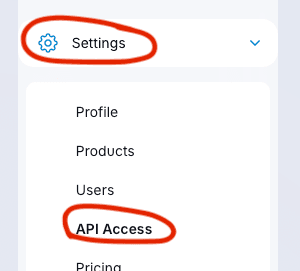
Copy your Merchant ID and API key from the top of that page, under Access credentials. Continue stays greyed out until both are filled in.

-
Online payments — on the same Viva page, find Smart Checkout Credentials. Is that section empty? Click Generate a pair of credentials there first. Paste the Client ID in full, including
.apps.vivapayments.com, and the Client secret. Viva shows a new client secret only once, so copy it while it is on screen.
-
Check and save — the wizard lists your Merchant ID and Client ID back to you, with the two secrets hidden, under "Secrets are stored encrypted and are never shown again." Press Save & activate. If Viva refuses a value, the wizard takes you back to the step with the mistake and says so — for example "Viva rejected these. Check the Merchant ID and API key and try again."
Once saved, the wizard carries straight on to the notifications — step 2 below.
Notifications from Viva
"Viva has to tell us about every card payment — without that, your payments never show up here." You set this up once, in your own Viva account:
- Press Copy next to the Webhook URL.
- In Viva, go to Settings → API Access → Webhooks.
- Click Create Webhook, paste the address, click Verify, wait for "URL verified", and tick
Active. Do this twice, with a different event type each time:
- Transaction Price Calculated — it confirms that a payment succeeded.
- Transaction Reversal Created — it lets you refund a payment from this dashboard.

Show screenshots under the instructions shows each Viva screen.
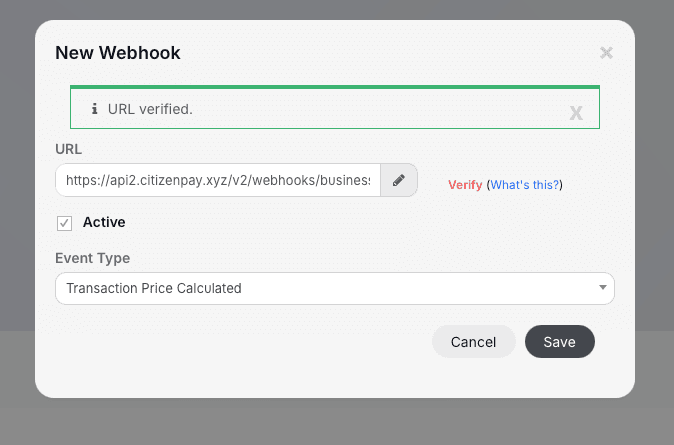
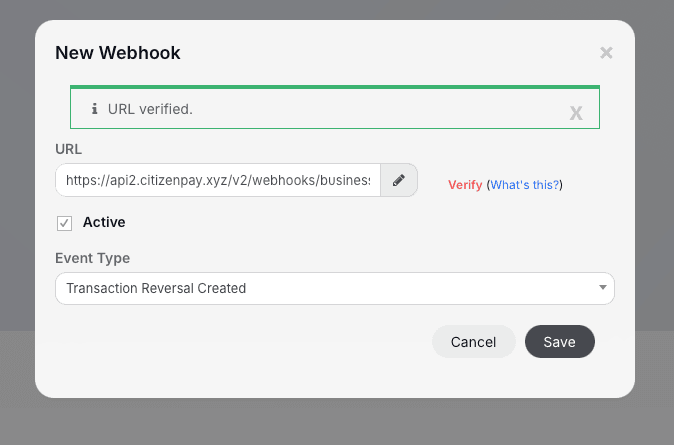
There is no button to say you have done it. While you work, the step shows "Waiting for Viva…", and it turns green by itself the moment you click Verify in Viva and Viva shows "URL verified" — you can keep the dashboard open next to it. The line then reads "On — Viva tells us about every card payment".
If you came here from the wizard, it ends on this step: Continue once Viva has confirmed, or Finish later if you want to stop now. The step stays open and keeps waiting.
Create both webhooks
The step turns green as soon as Viva has verified the address, which happens with the first webhook. Create the second one anyway: without Transaction Reversal Created, a refund started from the dashboard does not work.
Your card terminal
Your card payments are reported to the place where the card terminal stands, so we need to know which card terminal is yours. The step offers whatever fits your situation, in this order:
- Payments are already waiting. If a card terminal we do not know has already taken payments on your Viva account, the step says so — "A card terminal we don't know took 3 payments…" — with Yes, it's mine. See Card payments waiting for you below.
- Pick it from the list. "We found these card terminals in your Viva account. Pick yours:" — each one reads "Card terminal 16016422" with a This one button. This list only appears if you have also set up the optional cloud terminal credentials.
- Type its number. The form opens straight away when there is nothing above to pick; otherwise click Type the card terminal number instead. See Where to find the card terminal number.
The form asks for:
- Place — where the card terminal is used.
- Name — filled in as "Card terminal"; change it to something you will recognise, such as "Counter".
- Card terminal number — when we do not know it yet.
- Used with a Pay POS phone or tablet? (optional) — pick the app terminal it belongs to, so the Card button works in the app, or leave "No — it works on its own".
Press Add card terminal. You see "Card terminal added to <place>." and the step turns green. No place yet? The form says "A card terminal belongs to a place, and you have none yet." with a Create a place link.
Using Pay POS on the same phone?
Then there is nothing to type: "Just take a first card payment in the app — the card terminal is added automatically." It is added to the app terminal's place and paired with it. See Card payments in the Pay POS app.
A first card payment
"Make a payment of any amount on the card terminal. As soon as it goes through, it shows up here." The step shows "Waiting for your first card payment…" and turns green by itself a few seconds after the payment. If it says "We can only see it once Viva sends us notifications (step 2).", go back to step 2 first.
Done, it reads "We received your first card payment." with a See your payments link to the place's payments.
When all four steps are green, the card says "Card payments are set up. Your card sales show up in this dashboard." and shows the list described below.
Where to find the card terminal number
Every Viva card terminal has its own number. You find it in the Viva app on the card terminal itself:
- On the card terminal, open the Viva app.
- Tap the More tab (called Plus on some versions).
- Tap About.
- Copy the number shown under Source terminal ID — all of it, for example
16016422.
Type the whole number: only digits, at least 8 and at most 16 of them. The last few digits alone are not enough — "This number is too short. Type the whole card terminal number — at least 8 digits, for example 16016422 — not just its last digits." Where do I find this number? under every card terminal number field shows these same steps.
Changing your Viva details
Once connected, the card lists what your Viva set-up is made of, one row each — under All Viva settings below the four steps, or straight on the card once all four are done:
- Viva account access — "Configured · Merchant ID …".
- Online payments (Smart Checkout) — "Configured · Client ID …".
- Notifications from Viva (webhooks) — "Webhook address verified on <date>", then when Viva last sent a payment notification and a refund notification. "None received yet" is normal until your first card payment or your first refund.
- When all four steps are done, also Your card terminal and A first card payment.
To change a value, press Change on its own row. It asks for that pair only: the Merchant ID or Client ID is filled in for you, and you type the matching secret again, because secrets are never stored in a readable form. Press Save changes; "Saved. Viva accepted the new credentials." confirms it. Nothing else has to be entered again. On the notifications row, Show instructions brings the webhook steps back.
Below a line sits Card terminals driven from the cloud (optional): "Lets a linked Citizen Terminal, or this dashboard, start a payment on a Viva card terminal." Only set it up if you need that. Set up cloud terminals asks for a separate pair from Viva — the POS APIs Credentials, under Settings → API Access, which are different from the Smart Checkout ones — and then for two more webhooks on the same address, Transaction Pos Ecr Session Completed and Transaction Pos Ecr Session Failed. With those credentials the dashboard can also list the card terminals in your Viva account for you. What to do next on the card terminal itself is under Cloud terminal.
Card payments waiting for you
Sometimes a card terminal takes payments on your Viva account before it has been added to a place — a new card terminal, or one nobody added yet. Those payments are kept aside, and an amber banner Card payments waiting for you appears at the top of your overview and of each place's Terminals tab:
A card terminal we don't know took 3 payments (€42.50), last one yesterday 14:05. Is it yours?
Underneath it gives the last digits of that card terminal's number: "Its number ends in 016422."
If it is yours, press Yes, it's mine. A short form asks which Place it belongs to (on a place's Terminals tab, that place is already chosen), a Name, and whether it is used with a Pay POS phone or tablet. If we do not know its full number yet, the form also asks for it — it must end in the digits shown. If you have set up the cloud terminal credentials, that field is optional: "Leave it empty and we look it up in your Viva account."
Press Add card terminal. The card terminal is added to that place and the waiting payments are booked there at once: "Card terminal added — 3 payments were booked to <place>." From then on, its payments go to that place by themselves.
If it is not yours, leave it. "Not yours? Leave it — nothing happens to these payments until somebody adds the card terminal. Contact us if you don't recognise them." Nothing is booked anywhere while the banner is there.
Card payments in the Pay POS app
The Pay POS app takes card payments through the Viva.com Terminal app on the same phone or tablet. As soon as your Viva account is connected, the app shows its card button — you do not have to add the card terminal first. The first card payment you take adds it for you: the card terminal is added to the app terminal's place, paired with it, and named "Card terminal". You can rename it afterwards on the Terminals tab.
If the Viva.com Terminal app is not installed, tapping the card button says "Viva.com Terminal app not installed" — "Install the Viva.com Terminal app to take card payments." — with an Open the Play Store button.
To see what is still missing, open the app's Settings and look at Card payments. One line says where you stand:
| The line says | What to do |
|---|---|
| Connect Viva in the dashboard to take card payments | Connect your Viva account on this page. |
| Install the Viva.com Terminal app | Install it on this phone or tablet. |
| Take a first card payment to finish the set-up | Take a card payment in the app; the card terminal is added by itself. |
| Card payments are ready — card terminal 16016422 | Nothing: card payments work, and this is the card terminal they go through. |
An amber "Viva notifications are not set up yet — finish the set-up in the dashboard" means step 2 is not done yet. Below the status, Viva.com Terminal app opens the Viva app, and Add the card terminal by its id lets you type the number by hand instead of waiting for a first payment — 8 to 16 digits, found as described in Where to find the card terminal number. Use it too if the line still says "Take a first card payment to finish the set-up" after a card payment went through. That row disappears once the phone has its card terminal.
Accept a local currency from a treasury
A treasury — whoever issues a community currency, such as Brussels Pay — can invite your business by email to accept its token.
- Open the link in the invitation email and sign in. It has to be the same email address the invitation was sent to; if it is not, the page shows both addresses and a Sign out and sign in with the right email button.
- The Accept payment method page shows the treasury's name, symbol and logo, and the invited email. Choose which business will accept the token — if you own exactly one, it is picked for you. No business yet? Create a new business takes you through signup and brings you back afterwards.
- Press Accept or Decline.
Accept, and the token is added to that business, to all of its places, and to any items restricted to that token. You are then taken to the Payment methods page — unless the treasury set a return address, in which case a notice tells you that either button sends you back to the treasury's site instead.
You might also land on one of these instead:
- Invite not found — the link is wrong or was removed. Ask the treasury for a new one.
- Already connected — this invitation has already been accepted. If you own the business, a View payment methods button appears.
- Invite declined — the invitation was turned down. You also see this for old links, because when a treasury re-issues an invite the previous one is automatically rejected.
- Invite expired — ask the treasury to send a fresh invitation.
Disconnection is silent
A treasury can disconnect your business at any time. There is no notification — the token simply disappears from your enabled methods, and each place then lists it under "Inactive payment methods".
Tokens issued by other businesses
Not every token comes from a community currency. A business on Citizen Pay can issue its own token so that it can take card payments for you on its terminals — a food hall with one till for every stand, say, or a shop that sells your products at its counter. It invites you by email, and you accept exactly as described in Accept a local currency from a treasury above: the email carries the token's name and symbol, and the acceptance page lets you pick which of your businesses takes it.
Once you have accepted:
- The token is listed under Enabled methods with the name of the business that issued it, and it is switched on for all of your places.
- That business can now set its terminals to sell for your places. A card sale it takes for you appears on your place's Payments tab like any other sale, with the note its operator typed and a via line naming its terminal and its business underneath.
- Your place is credited the sale in their token, minus Viva's card commission, and you are paid out for it like any other payout, less the issuer's fee percentage. Agree that percentage with them before you accept.
- To stop one of your places being sold for, switch the token off on that place (see Choose what each place takes). It drops out of their terminals' lists.
Leaving a token
A token issued by another business carries a Leave action on its tile. Press it and confirm, and the token is removed from your business, from all of your places and from any items restricted to it — it does not linger as an inactive method.
Leaving also clears every terminal of theirs that was set to sell for one of your places: from that moment their card button no longer offers your places. Sales they already took for you stay on your places. If they invite you again later and you accept, their terminals start with your places unticked, and they have to choose them again.
Only tokens issued by another business can be left this way. For any other method, contact support as before. The issuer can also end the arrangement from their side; that is just as silent as a treasury disconnecting you.
Choose what each place takes
What an individual place accepts is set on the place itself. Open it from Places and go to its Payment methods tab. There are two cards there: the methods, and — for places that take a token — the place's wallet.
Turning methods on and off
The Payment methods card has one chip per method your business has active, under the hint "Click a payment method to enable or disable it on this place."
- A solid-bordered chip with a check is on for this place; a dashed-bordered chip with a plus is off. Every click saves straight away — the chip spins while it does — so there is no Save button. If a save fails you get "Could not save changes. Try again."
- Set up on the place but no longer active on your business? An amber Inactive payment methods box lists it. Click to remove it, or re-enable it for the whole business. For €, the box points out that € comes back when you reconnect the bank, with a Manage banking connection link.
- If € is not active anywhere yet, an info box explains that "€ becomes available once payment requests are activated on the banking connection." — see Banking.
- Nothing available at all gives "This organization has no payment methods available yet."
- An inactive chip whose treasury cannot be looked up shows a long
0xaddress in place of a symbol. Clicking it still takes it off the place. - If the card cannot load your business's methods, the error appears where the chips would be; reload and try again.
The place's wallet
The Wallet card only shows up when the place accepts at least one on-chain token. A place that takes € and nothing else never sees it — which is the answer to "where is my wallet address?" on those places: there is not one to show.
The card describes itself as "On-chain account address that receives token payments for this place." Under Account address you get the address and a Copy button that flips briefly to Copied. If the place accepts a token but no address has been assigned yet, it says "No account address has been set for this place yet."
Related pages
- Issued by Citizen Pay
- docs.citizenpay.eu
- Title
- Payment methods
- Lang
- EN
- Sheet
- 024 / 035