Places
Set up the shops, bars, stalls or machines where you take payments — and manage each one's QR checkout page.
A place is one spot where you take payments. A shop, a bar, a market stall, a vending machine site. Each place gets its own QR-code checkout page, payment methods, product menu, stock tracking, terminals and settings — so you can run several locations from one dashboard.
Owners and admins can work with places. The sales role has no access here.
Finding your places
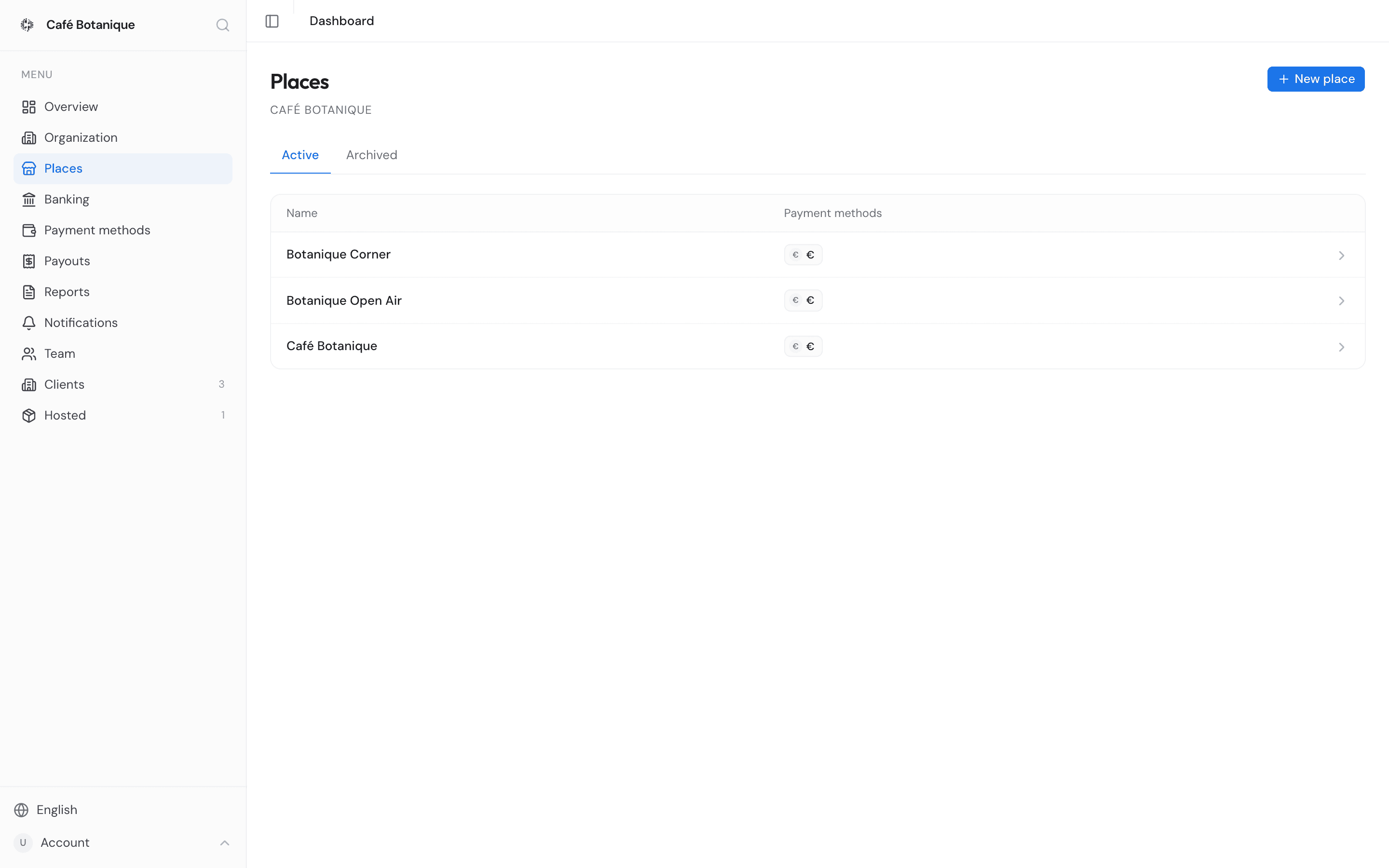
Open Places in the sidebar. You'll see two tabs, Active and Archived, and a list showing each place's Name and its Payment methods (small badges, or a dash if none are switched on). The newest place is at the top. Click any row to open it.
Which tab you're on is kept in the page address, so a reload or a bookmark brings you back to the same one. Before you've made anything, Active says "No places yet." and Archived says "No archived places." If the list can't be fetched at all you get "Failed to load places." — reload the page.
Adding a new place
- On the Places list, press New place (top right). A panel titled "New place" opens: "Give your place a name and pick which payment methods customers can use."
- Give it a Name. This one is required — Create place stays greyed out until you type something. This panel doesn't cap the length, but the Name field on the QR Code page does, at 120 characters, so stay comfortably under that.
- If you like, add a Description and a photo (Upload image). The hint under the button only says "JPG or PNG."; there's also a 5 MB ceiling, and you'll only hear about either as an error — "Image must be a JPG or PNG file." or "Image is larger than 5 MB. Please choose a smaller file."
- Tick the Payment methods customers can use here. Everything your organization already accepts is pre-selected: "Click a payment method to enable or disable it on this place." If your organization has none yet the panel says "This organization has no payment methods available yet." — head to Payment methods first.
- Press Create place. It reads "Creating..." while it works.
After you press Create place
You land straight on the new place's page, and a few things have been decided for you.
- The checkout address is built from the name. Accents are stripped, spaces become dashes, and
anything that isn't a letter, number or dash is dropped — so "Café Botanique" becomes
cafe-botanique. A leading "qr-" is removed, because that prefix is reserved. If the address is already taken anywhere on Citizen Pay, a four-character suffix is added, and you'll find it on the QR Code page looking likecafe-botanique-k3f9. You can change it there (QR code link). - Only your organization's own payment methods are kept. Anything else in the selection is quietly dropped.
- The menu starts hidden. A new place asks customers for an amount rather than showing them products. Turn the menu on from the Products tab.
- A failed photo doesn't cost you the place. If the image upload fails, the place is still created: you see "Could not upload image. Please try again." and land on it anyway, with no photo. Add one from the QR Code tab.
What's inside a place
Open a place and you'll find its name, a link back to Places, and a row of tabs: Payments, Payment methods, QR Code, Products, Stock, Terminals, Analytics and Settings. This page walks you through Payments, QR Code and Settings. The rest have their own pages:
- Products and stock — the menu customers see, and your stock counts.
- Terminals — the payment terminals at this place.
- Payment methods — which of your organization's payment methods this place accepts, and the place's wallet address.
Two markers up here are worth recognising:
- An Archived badge beside the place name means the place has been retired. See Archiving a place.
- A crossed-out eye on the Products tab means the menu is hidden — customers who scan are asked for an amount instead of being shown your products.
Follow a stale link to a place that no longer exists and you get "Place not found" — that one comes straight from the server, so it arrives without a full stop and in English whatever your language.
Analytics
Analytics is this place's sales over a period you choose: paid volume, paid orders, average ticket and refunds, each compared with the period before, then the daily, weekday and hourly charts, the breakdowns, the vending machines at this place and the two CSV exports.
It is the same report as the organization-wide Analytics page, scoped to this one place — read that page for what every part of it means. The only differences here are that the place filter is gone, and that the shortest window is a week: for today's takings, use the Payments tab above.
Watching the money come in
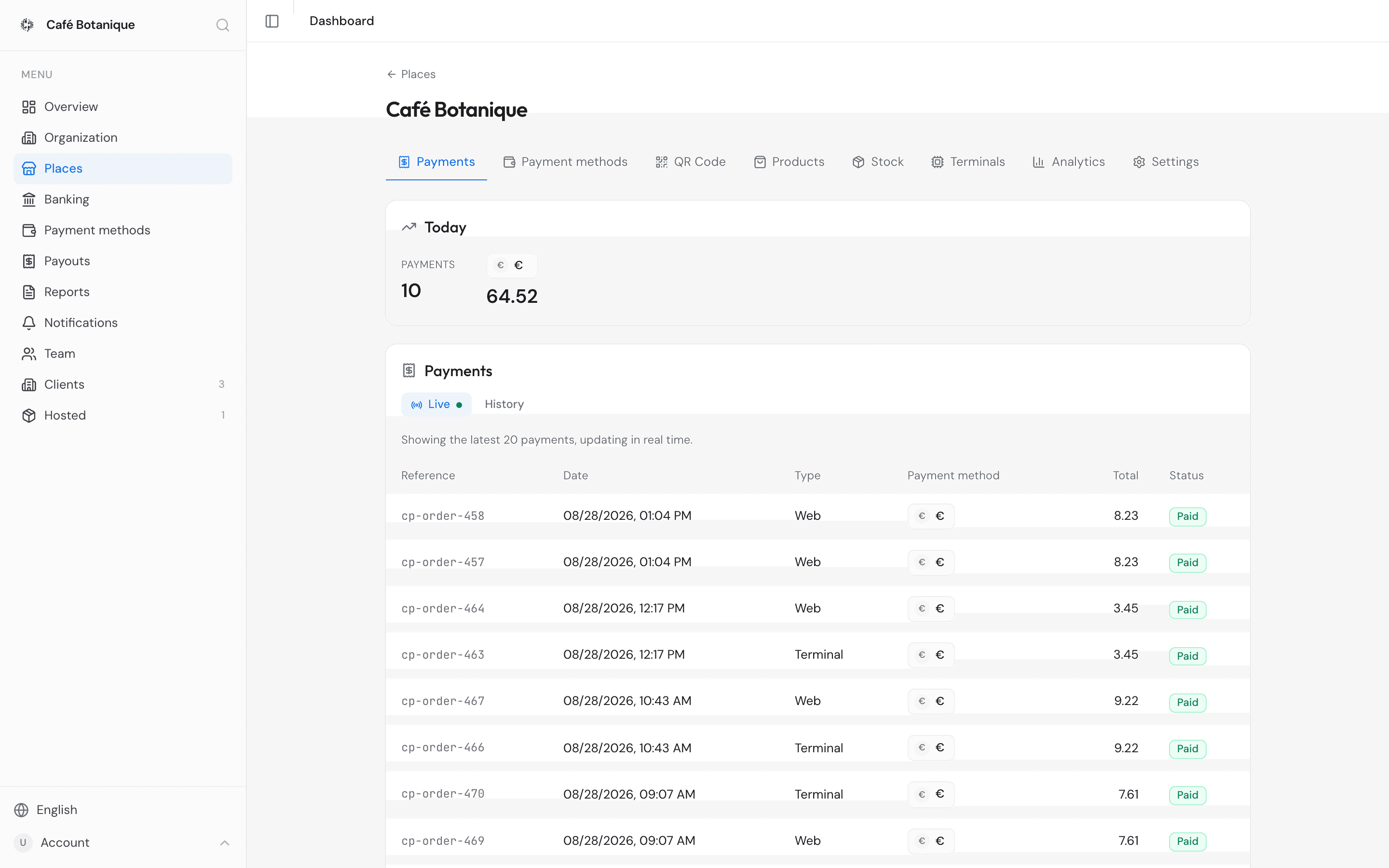
The Payments tab opens by default and shows what's being paid at this place.
Today
The Today card counts today's payments and totals them per payment method, without a currency symbol.
It refreshes every few seconds — but only while the browser tab is the one you're looking at. Switch to another tab, or minimise the window, and the refreshing stops; it picks up again, and catches up in one go, the moment you come back. So it does work as a running tally on a screen in the back office, as long as that window is showing this tab and isn't buried behind another one.
Before the day's first payment the card says "No payments yet today." If the totals can't be fetched, "Could not load today's totals."
Live
The Live tab shows the last 20 payments as they happen, under the note "Showing the latest 20
payments, updating in real time." Each row gives you the payment's Reference, Date,
Type, Payment method, Total and Status. References read cp-order- followed by the
order number, like cp-order-4821 — that's the thing to quote when you ask us about a payment.
The colours tell you where each one stands:
- Green — paid. The payment went through.
- Amber — pending, checkout or confirming. It's still in progress.
- Red — failed or cancelled. The payment didn't complete.
- Blue — refunded or refund pending. The money was, or is being, sent back.
- Grey — anything else. A status the dashboard has no colour for is shown plainly in grey with its own name. Nothing is wrong; it's simply a state this list doesn't highlight.
Cancelled orders are filtered out of both Live and History, so red in practice means failed. Like Today, this list stops updating while the tab is hidden. An empty list says "No payments for this place yet."; a failure says "Failed to load payments."
History
The History tab shows older payments in the same list. Pick a range — Last 7 days, This month, Last month or Custom. The first three fetch as soon as you pick them; Search re-runs the same query, which is what you want after a busy hour. Custom adds From and To date pickers, and results appear as soon as you've set both.
History isn't paged: whatever the range covers comes back as one list. On a busy place a wide range means a very long page, so narrow the dates rather than scroll.
Your QR code and checkout page
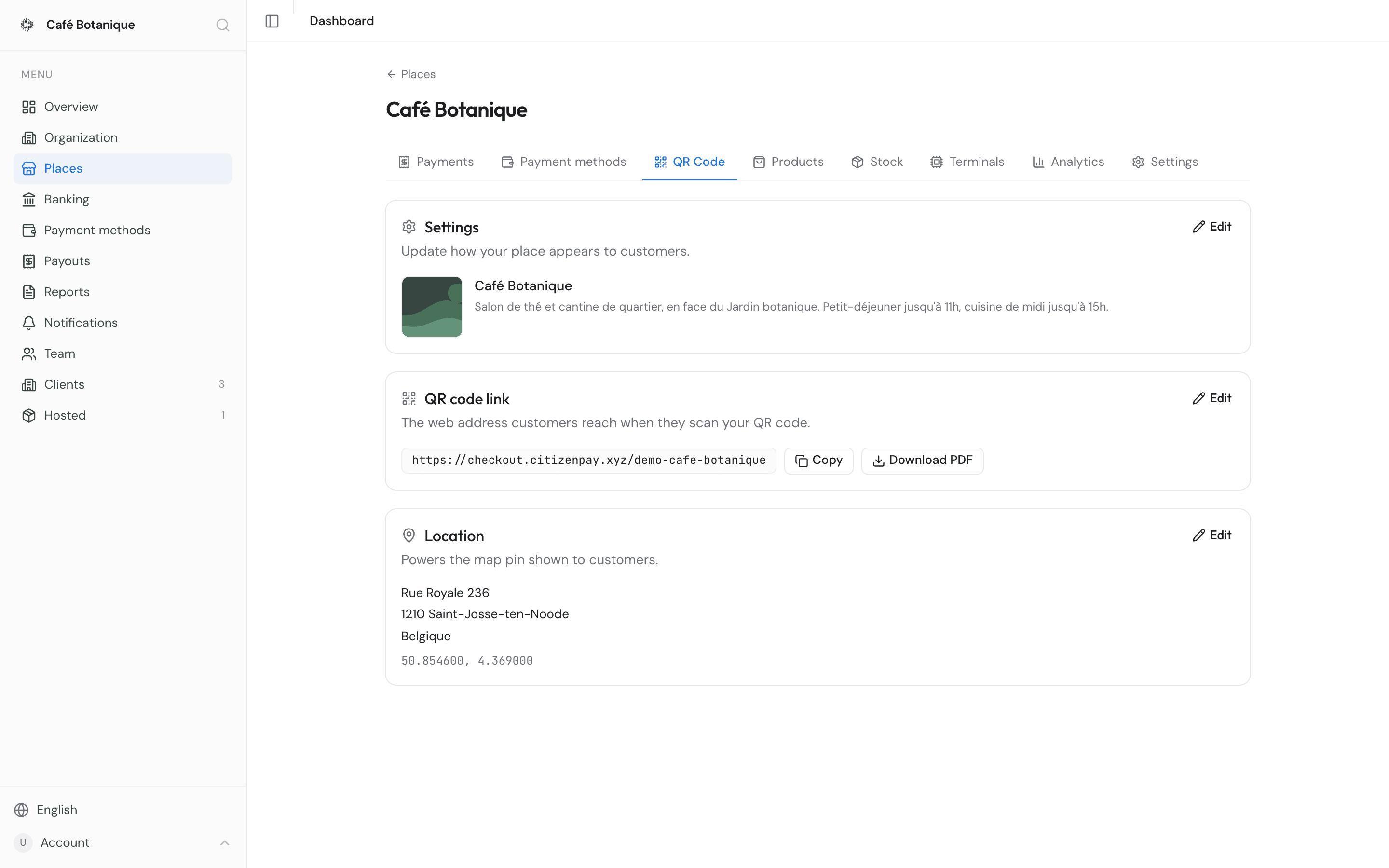
The QR Code tab is where you set up what customers see when they scan, and where the scan takes them.
How your place looks to customers
The Settings card — "Update how your place appears to customers." — controls your customer-facing look. Press Edit, then:
- Image. Press Upload image (or Replace image). The picture uploads the moment you pick it, with its own Saving/Saved indicator — you don't need to press Save for it, and backing out won't put the old one back.
- Name. Required, up to 120 characters. Empty gives you "Name is required."
- Description. Up to 500 characters.
Save stays greyed out until you've actually changed something, and the "Saved" confirmation clears itself after a moment.
QR code link
The QR code link card — "The web address customers reach when they scan your QR code." — shows
the address customers land on, for example checkout.citizenpay.xyz/my-place. From here you can:
- Copy the link to share it directly. The button flips to Copied for a second.
- Download PDF — pick Square or Rectangle (A5) to get a print-ready poster with your
place's image, name, description and a "SCAN TO PAY" QR code. Both are 148 mm wide, so they print
at the same size on a table card or a shelf edge. The file is named after the link:
my-place-qr-square.pdformy-place-qr-a5.pdf. If it doesn't work you'll see "Couldn't generate the PDF. Please try again." - Edit the link, following the rules below.
The card's hint reads "Lowercase letters, numbers and dashes.", and in full that means:
- It has to start with a lowercase letter or a number. Start it with a dash and you get "Only lowercase letters, numbers and dashes are allowed, and it cannot start with a dash."
- After the first character, lowercase letters, numbers and dashes anywhere — a dash on the end is allowed.
- Capitals are lowercased for you as you type, so you can't make one by accident.
- Up to 60 characters.
- It can't begin with "qr-", which is reserved: "QR code link cannot start with "qr-"."
- It has to be unique across all of Citizen Pay. We check as you type and say "This QR code link is already in use." when it isn't free.
The amber warning only turns up once you actually change the link — "Changing this will require updating any printed QR codes." Press Update QR code link to confirm.
Changing the link invalidates printed QR codes
QR codes you have already printed point at the old address. If you change the link, download and print fresh posters.
Location
The Location card — "Powers the map pin shown to customers." — puts your pin on the map.
Start typing in Search address: from two characters on, suggestions arrive after a short pause. Pick one and Address, City, ZIP / Postal code, Country and the map coordinates fill in by themselves. You can also type the fields yourself — they hold 200, 120, 20 and 120 characters respectively — though only a picked suggestion sets coordinates. Once set, the card shows them to six decimal places; until then there is no Coordinates row at all.
Save stays greyed out until at least one field has something in it. Until you have saved a location the form simply sits there open, with no Edit button; Edit appears once a location exists, and puts the card back into edit mode. If a save fails, the card shows the message the server sent back, which can read more technically than the rest of the dashboard — try again, and tell us the wording if it keeps happening.
Place settings
The Settings tab covers two things: hosting and archiving.
There's nothing to set on an archived place. Its Settings tab is a single card reading "This place is archived. Archiving is permanent and cannot be undone." — no Host card, no archive button.
Host
Sometimes someone else physically holds your products — a co-working space, say. The Host card is where you link them: search for a business already on Citizen Pay, invite one by email, see invitations still waiting, and end the arrangement with Unlink host. A place can have one host at a time.
The card sums up what a host gets as "a read-only product + stock list", and that's true of the catalogue: your host can't touch names, prices, images or your back-stock alert levels, and never sees your payments or your settings. The counts are the exception, and the whole point — they keep them up to date, typing in what's on the shelf, the level they want warning at, and the back-stock quantity sitting in their storeroom.
Hosting has the whole story: how the search and the invitations really behave, what the error messages mean, and what your host sees on their side.
Archiving a place
Archiving retires a place: it moves to the Archived tab, and its data and past payments stay where they are.
- Open the place's Settings tab.
- Press Archive place — "Move this place to the Archived tab. Its data is preserved, but archiving is permanent — it cannot be restored."
- You're asked "Are you sure? This cannot be undone."; confirm with Yes, archive. If it doesn't work you'll see "Something went wrong" and the place stays as it was.
- You're taken back to the Places list, with the place now under Archived.
Afterwards the place is still there to read — payments, products, stock history — but its Settings tab shrinks to the archived notice. If the place had a host, it also disappears from their Hosted list without any explanation on their side, so tell them yourself.
Archiving is permanent
An archived place cannot be restored from the dashboard — there is no unarchive button. Only archive a place you are sure you have finished with.
Related pages
- Issued by Citizen Pay
- docs.citizenpay.eu
- Title
- Places
- Lang
- EN
- Sheet
- 019 / 035