Hosting
Hold another business's products on your site — accept the invitation, keep the counts right, and get told when stock runs low.
What hosting is
The business that owns a place isn't always the one standing next to it. A vending operator keeps a machine in your co-working space. A supplier stocks a shelf in your café. Citizen Pay calls the business that holds the products on site the host.
As a host you get a narrow window into that place: its products, and its stock. The catalogue is read-only — the names, prices, images and the owner's back-stock alert levels are theirs, and you never see their payments, settings or menu editor. The counts are the part that's yours, and the whole reason you're there: you keep them up to date, typing in what's on the shelf, the level you want warning at, and the back-stock sitting in your storeroom. In return you can get low-stock alert emails, so you know when your shelf needs filling.
It works both ways. Any organization can host places for others while running its own places as normal.
Accepting a host invitation
Hosting starts with an invitation from the place's owner. You get an email saying the business has invited you to host their place, explaining that you'll see a read-only product list and stock levels and get an email when stock runs low. Press Review invitation to open the acceptance page.
That email is the only place the deadline appears: it says the invitation expires in 30 days. Neither your dashboard nor the owner's ever shows a date, and once it lapses the invitation simply stops being listed. If you're going to be slow about it, keep the email.
The page is titled You've been invited to host. From there:
- Sign in if you aren't already — you'll come back to the invitation afterwards. Use the email address the invitation went to. A different address gets you a "Signed in as someone else" notice naming both.
- The page names the business inviting you and the place involved.
- Choose which of your organizations does the hosting from the Host as dropdown. It lists every organization you own or belong to.
- Press Accept invitation. The place is linked to that organization, you're signed up for low-stock alerts automatically, and you land on the hosted place's page.
To turn it down, press Decline. The invitation disappears — the owner sees it vanish from their place settings — and you go back to your dashboard.
No organization yet?
If you don't belong to any organization, the acceptance page shows a notice with a Create a business link. Run through signing up first, then return to the invitation to accept.
If the link tells you the invitation wasn't found, was already used, or has expired, ask the owner for a fresh one.
The places you host
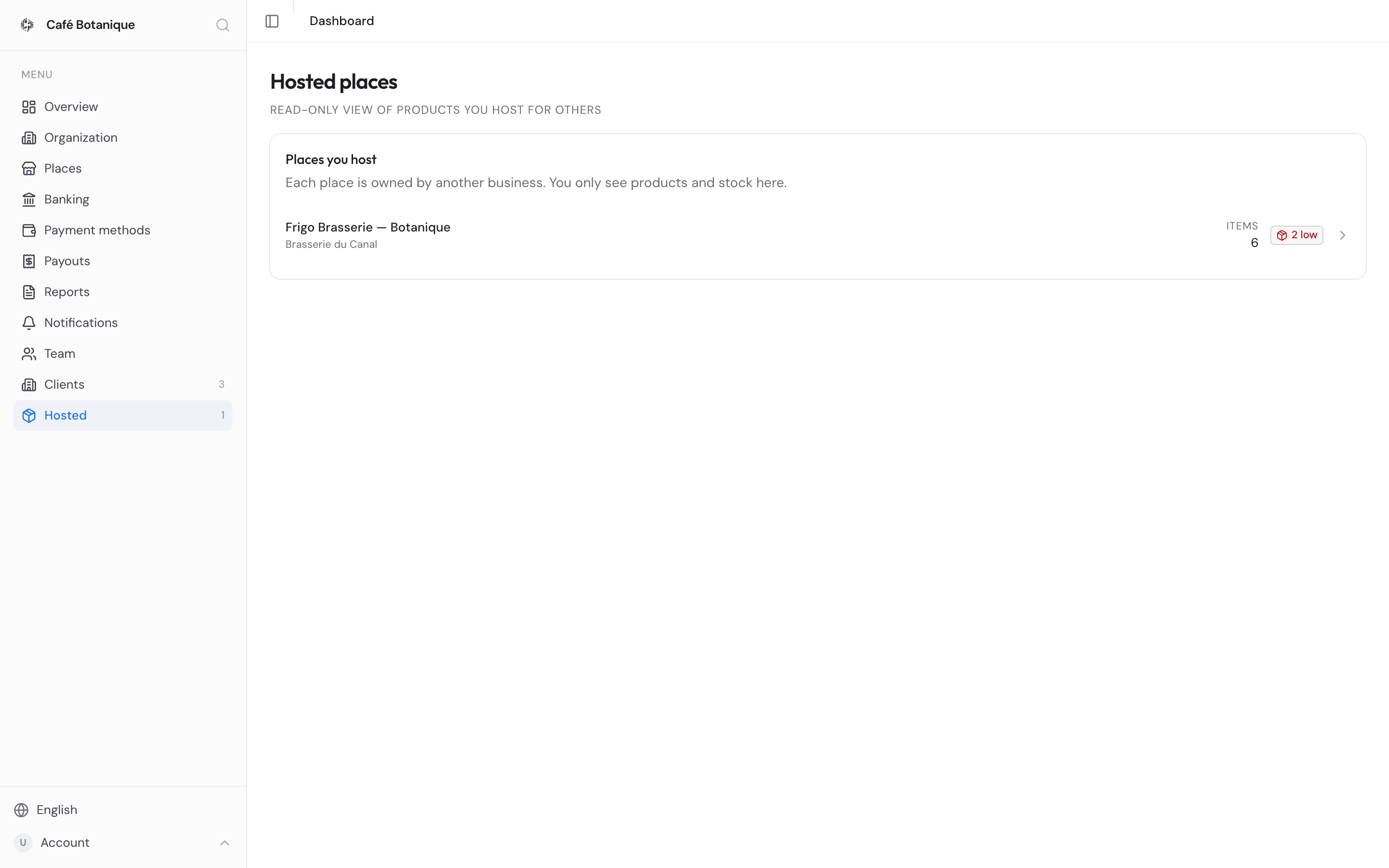
Once your organization hosts at least one place, Hosted appears in the sidebar with a badge counting them. It's hidden entirely when you host none.
The page is titled Hosted places, under the line "Read-only view of products you host for others" — read that as the catalogue being read-only, not your counts. It has one card, Places you host: "Each place is owned by another business. You only see products and stock here." Every row gives you:
- the place name and the business that owns it,
- an Items count,
- a low-stock badge like 3 low when things on your shelf are running down — amber usually, red if something has run out completely.
Those counts look only at your shelf, not the owner's back-stock. Click a row to open the place.
Two things about these numbers are worth knowing before you trust them:
- The row counts include products the owner has hidden; the page inside doesn't. A place can say 12 items here and show you nine when you open it, and a 2 low badge can be pointing at something you will never find in the list. Treat the badge as a prompt to go and look, not as a total you can reconcile.
- A place the owner archives simply vanishes — from this list, from the sidebar badge, and from its own page, with nothing to say why. The sidebar badge only ever counts live places. If a place you host disappears, ask the owner rather than assuming something broke.
Hosting nothing at all — including after the last place you hosted was archived — the page says "You're not hosting any places yet."
Inside a hosted place
Low-stock alerts
The Low-stock alerts card has a subscribe switch. On ("Subscribed to alerts") means you get an email when an item runs low here, so you can plan your re-stocking. Off ("Unsubscribed") stops the emails for this place, and you can switch it back on any time. Accepting the invitation subscribes you by default, and so does never having touched the switch at all.
If the change doesn't reach us — a dropped connection, say — the switch quietly slides back to where it was, with no error message. If it snaps back on you, flip it again.
The alert emails carry an unsubscribe link of their own, which turns this same switch off without you having to open the dashboard. See Unsubscribing from an email.
Products and stock counts
The Products card lists the place's menu items, grouped by category, with each item's image, name and description — read-only. Your job is to keep the counts accurate: "Keep the on-shelf and back-stock counts up to date. The owner manages the catalog and alert preferences." Each item has two parts:
- On shelf — what's out at your location. Turn the Track switch on and you get a coloured quantity chip (green OK, amber low, red out), a Quantity field, and an Alert at or below level for shelf alerts. Where a place-wide shelf default exists it shows through as the placeholder; the levels that actually apply here are the ones you set, item by item.
- Back-stock — reserve stock stored at your location. Just a Track switch, a coloured chip and a Quantity field. Back-stock alert levels belong to the owner, so there's no field for them here.
Everything saves itself as you type. Each item card has one shared Saving/Saved indicator covering both halves, and shows "Couldn't save" if a write fails.
Quantities must be whole numbers, zero or above. Type anything else — a decimal, a minus sign, a stray letter — and nothing is saved and nothing is said: the field just sits there holding what you typed. If a change isn't showing the Saving/Saved indicator, look at what's actually in the box.
Turning Track off clears that half's count and empties its alert level; turning it back on starts you from zero.
Quantities and Track switches go into the shared activity log below, so the owner sees the same history you do. Alert levels don't — changing Alert at or below is treated as a preference, not a stock movement, and leaves no trace in the log.
A few boundaries worth knowing:
- Items the owner has hidden don't show up in your list — even though they are counted in the Items and low-stock numbers on the previous page.
- You can edit the back-stock quantity, because that stock physically sits with you. You can't change prices, names, images or back-stock alert levels.
- Your shelf counts appear on the owner's Stock tab, read-only. You're the only one who edits them.
If the place has no items yet, the card says "No products to show."
Stock activity
The Stock activity card is the same log the owner sees on their Stock tab: every shelf and back-stock change, with the item, a badge for which side it touched ("host shelf" or "your back-stock"), the reason (paid order, manual edit, and so on), the time, and the before → after quantities.
You share one log, so nothing either of you does is hidden from the other. What it doesn't show is who made each change — no name, no account, on either side. The badge tells you which side of the stock moved, and that's as close to attribution as the card gets. If it matters who adjusted something, agree that between yourselves rather than expecting the log to say.
Inviting a host to your own place
Own the place and want to bring in a host? That's on the place's Settings tab, in the Host card. (An archived place has no Host card at all — see Place settings.)
The search box is labelled Search by business name, VAT, or email, but it only ever matches on
business name, legal name and VAT number. An email address finds nobody. What typing one does
instead is unlock the invitation: enter a well-formed address that matches nothing and the card
offers Invite {email} to become a host with a Send invite button.
So there are two ways in:
- Link a business already on Citizen Pay. Type at least two characters of their name or VAT number. The search returns verified businesses only, never your own, and stops at ten results — if the one you want isn't there, type more of the name. Each result shows the business name and its VAT number with a Link as host button; press it and they're linked straight away, with no invitation and no email. Nothing matching gives you "No matching business found."
- Invite someone who isn't here yet. Type their email address. Because it can't match anything, the invite offer appears; Send invite emails them the invitation described above.
While an invitation is waiting it's listed in the card, and you can cancel it with the × and a confirmation. Once a host is actually linked the search box disappears entirely, and the card shows their name (or "Unnamed business") and VAT number with an Unlink host button, confirmed with Yes, unlink. A place can have only one host at a time, so unlink the current one before inviting another.
If something goes wrong
- "Invite saved but the email couldn't be sent. You can resend it later." Read this one carefully: the invitation itself was created, but nothing arrived in their inbox. It won't appear in the pending list straight away either — reload the page and you'll find it there. Send them word another way, or cancel it and try again later.
- "This place already has a host. Unlink them first." Someone linked a host while you had this page open. Reload the card and unlink first if you want to swap.
- "That doesn't look like a valid email." The address didn't survive a second check. Retype it.
- Nothing found for a business you know is on Citizen Pay. They're probably not verified yet, or you're searching a trading name we don't hold. Try their VAT number, or invite them by email instead.
- You invited the same address twice. No harm done: the same invitation and the same link are re-used, so the first email still works and only one invitation is listed.
- An invitation that's gone from the list has expired. Nothing announces it and no date is ever shown; just send a new one.
See Places for the rest of the place settings. Hosting is for owners and admins — the sales role has no access here.
- Issued by Citizen Pay
- docs.citizenpay.eu
- Title
- Hosting
- Lang
- EN
- Sheet
- 033 / 035