Getting started
Create your account and business, or take over an account a partner has set up for you, then start taking payments.
There are three ways you might arrive at your Citizen Pay dashboard:
- You sign up yourself and set up your organization in a few short steps.
- A partner set everything up for you and you accept an invitation to take it over.
- Someone invites you to join their organization as a team member.
Here is what each one looks like.
Sign up and create your organization
From the sign-in page, follow the Sign up link. One set of questions creates both your personal account and your organization — five steps, with a progress bar across the top, or four if you are already signed in and the account step is skipped. After the first step there is always a Back link if you need to fix something.
Each step checks its own answers before it lets you on, and says what is missing in a line under the form.
Step 1 — Your account
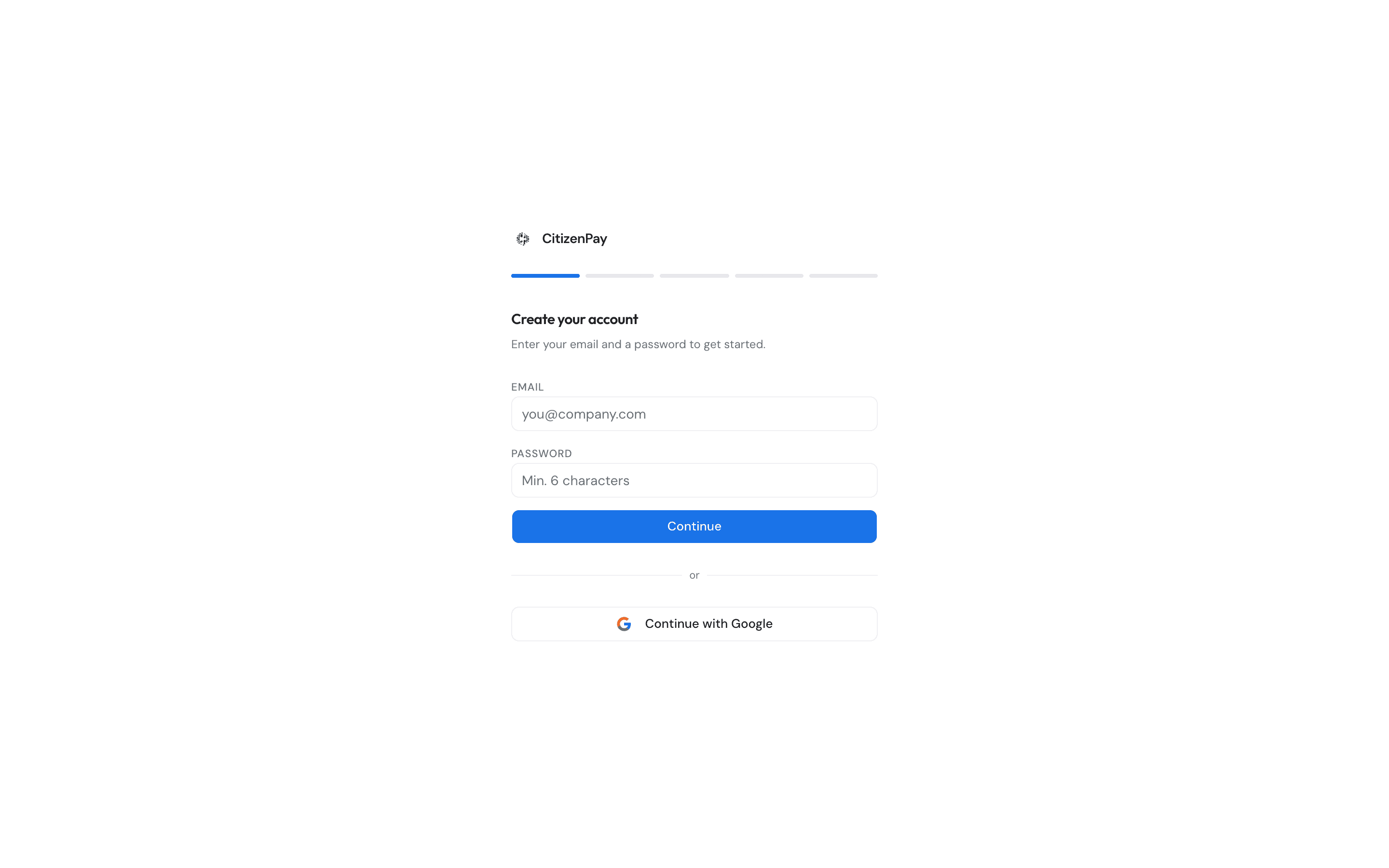
Enter your email address and a password (at least 6 characters) and press Continue, or use Continue with Google instead. If the address is new to us, a Confirm password field appears — retype your password to create the account.
If we need to confirm your email address, you will see a Confirm your email screen showing the address you entered:
- Click the link in the email. It opens a Confirm your email page with a Continue button — press it and you come back here, already signed in, at the next step. (The button is there on purpose: an email scanner that follows links would otherwise use up your one-time link before you ever saw it.) While it works it reads Verifying..., and if we cannot reach the server you get "We couldn't reach the server. Check your connection and try again." — the button stays live, so press it again. A link that has already been used or has run out takes you to a page where you can ask for a fresh one.
- No email? Check your spam or junk folder, or press Resend the email — "Sent. Check your inbox and your spam folder." confirms the new one is on its way.
- Typed the wrong address? Press Use a different email and start again.
Already have an account?
The same form signs you in: enter your existing email and password and you jump straight to the organization steps. If you see an "email already registered" error, you have most likely mistyped your password — use the Reset your password link.
If you were already signed in when you started, this step is skipped.
Step 2 — What kind of business
Pick the card that fits: Organization (a company, non-profit or other organization) or Personal (a sole trader or freelancer). Either way the remaining steps are the same, VAT number included.
Step 3 — Your VAT number
Enter your VAT number, for example BE0123456789. We check it against the official EU business
register as you type:
- If it checks out, you get a green VAT number is valid tick and your Legal name and Legal address are filled in for you.
- If we cannot verify it, an amber warning appears — you can still carry on, you just fill in the legal name and address yourself.
All three fields need to be filled in before you can continue.
Step 4 — Your commercial name
This is your trading name, the one your customers know you by — which may not be the same as your legal name.
Step 5 — Your bank account
Enter the IBAN of the account your payouts should land in, for example BE68 5390 0754 7034, then
press Complete setup. We only check that the field is filled in, so read it back before you
press. If it does turn out wrong, an owner can change it later on the
Organization page.
If your sign-in lapsed somewhere along the way, this last step says "You are no longer signed in. Confirm your email using the link we sent you, then try again." Everything you typed stays on screen — confirm your address in the other tab, come back, and press Complete setup again.
What happens next
Your organization is created with you as its owner, along with a first place named after your commercial name and ready to take euro payments. Your organization starts out marked Pending while we verify it — you can see that badge on the Organization page.
You land on the Banking page, because connecting your bank account is the next thing to do before money can reach you. If you started signing up from a link to some other page, you go there instead and Banking waits for you in the sidebar.
A partner set your account up for you
A Citizen Pay partner (a reseller) can get you started: they create your organization, fill in your company details and often set up your terminals in advance. You get an email invitation, and opening it brings you to a page headed Your account is ready naming the partner and your organization — and, if it applies, how many terminals are already set up for you.
Press Accept and continue. By accepting you agree to the Citizen Pay terms of service. You then go through to your dashboard, with a quick step to choose a password first if you have never signed in before.
Only the invited email can accept
You have to be signed in with the exact email address the invitation was sent to. If you are signed in as someone else, a "Wrong account" screen shows both addresses — sign out and sign back in with the invited address.
A few things worth knowing:
- The organization was yours all along. Accepting does not hand ownership over — it confirms it. From that moment the partner can look at your setup but not change it.
- Invitation expired? Ask your partner to send it again. A resent invitation is good for 30 days.
- "Invitation not found" means the link is broken or the setup was cancelled — ask your partner for a new one.
- "Already accepted" means you are done. Just sign in to reach your dashboard.
Joining someone else's organization
If someone invites you to their team, there is nothing for you to set up. If you are new to Citizen Pay you get an email to confirm your address and choose a password, and the organization is simply waiting for you when you sign in. If you already had a Citizen Pay account, it appears in your organization switcher with no email at all. See Team for roles and how invitations work.
Start taking payments
With your account and a place in hand, there are two ways to take payments. Use one or both.
A phone or tablet with the Pay POS app. Install the Pay POS app on an Android phone or tablet and open it. It shows Scan to activate and a code. Scan the code with your own phone's camera, sign in to the dashboard with your account, choose the place this terminal belongs to and press Activate. No place yet? The activation page lets you create one there and then. The app moves on by itself once it is activated. See Activating a Citizen Pay terminal.
A Viva card terminal. If you take card payments with Viva, connect your Viva account and add your card terminal, so its payments show up in the dashboard. The Take card payments steps on the Payment methods page walk you through it — see Take card payments. With Pay POS and the Viva.com Terminal app on the same phone, you do not need to add the card terminal yourself: the first card payment in the app adds it.
- Issued by Citizen Pay
- docs.citizenpay.eu
- Title
- Getting started
- Lang
- EN
- Sheet
- 016 / 035