Terminals
Set up and adjust the payment terminals at each of your places.
Every place has a Terminals tab. It's where you look after the devices that take payments at that location. Three kinds can show up here:
- App Terminal — the Citizen Pay POS app on a phone or tablet.
- Citizen Terminal — a Citizen Pay hardware device.
- Card terminal (Viva) — a Viva card terminal, added by its number. Usually it is paired with an app terminal and takes the card payments for that phone; it can also stand on its own, and its card sales are reported to the place either way.
Only owners and admins can work with terminals — and, while you allow it, the technicians of the partner who looks after your machines. You decide that on the Team page, under Partner maintenance. This page covers the dashboard side. For unboxing and physically setting up a hardware terminal, see Terminal setup.
Your terminals at a glance
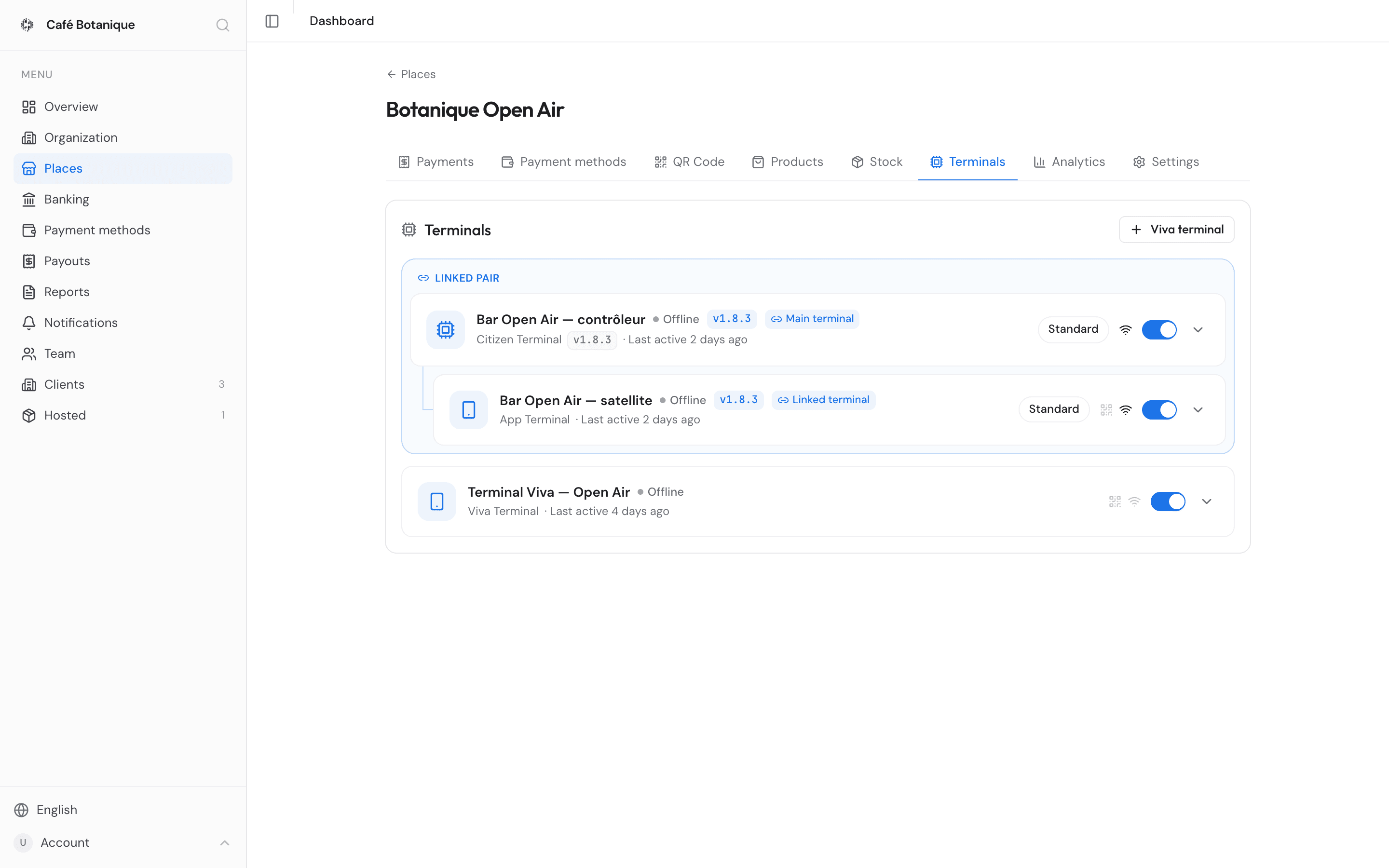
The terminals of a place are a table, one row per machine:
| Column | What it tells you |
|---|---|
| Terminal | Its name, with the start of its id underneath |
| Type | App Terminal, Citizen Terminal or Card terminal, with the hardware board underneath when the device reports one |
| Status | A green or grey dot, then Online or how long ago it was last active (online means the device has been in touch in the last few minutes) |
| Version | The firmware on a device, or the app version on a phone |
| Payment | Small icons for what this terminal takes — QR, tap to pay, card |
Click a row and that terminal's own page opens, which is where everything about it lives.
Two terminals paired together stay next to each other in the table: the Main terminal first, the Linked terminal right underneath it.
A card terminal paired with an app terminal has no row of its own. It is shown on that phone's row — Card via Viva under the type — and you reach it from the phone's page, under Payment methods. Only a card terminal that is paired with nothing is a row of its own.
If nothing is connected yet, you'll see "No terminals are connected to this place yet." App and hardware terminals appear here on their own once they're connected or activated — there's no button to create them. The one terminal you add by hand is a card terminal, with the Card terminal button in the header.
If a card terminal we do not know yet has taken payments on your Viva account, a Card payments waiting for you banner sits above the table, with this place already chosen when you answer Yes, it's mine — see Card payments waiting for you.
Activating a Citizen Pay terminal
A brand-new Citizen Pay terminal shows a QR code (or a link) on its screen, and so does the Pay POS app the first time you open it: "Scan this code with your phone's camera, or tap the button below. You'll sign in to the Citizen Pay dashboard and choose the place this terminal belongs to." Scan it and the Activate Terminal page opens in the dashboard — sign in if you're asked to, and you'll come right back to it.
- The page says "Select the location where this terminal will be used." Use the search box to find the right place. You can pick from every place across all the organizations you belong to.
- Select the place. The terminal is named "<Place name> Terminal" automatically. You can't change that during activation, but you can rename it afterwards from the Terminals tab.
- Press Activate. You'll see "Terminal activated!" and the terminal now belongs to that place, able to take both QR and tap to pay payments.
You need to be an owner or admin of the organization that owns the place you choose.
No place yet? Instead of a list, the page shows First, create a place: "A terminal always belongs to a place — your shop, stand or venue. Give it a name; you can change it later." Type the name (if you own more than one business, pick which one first) and press Create place. The new place takes every payment method your business has and is selected for you, so Activate is all that is left. If your account is not part of any business, the page says "You have no place to put this terminal in. Ask the owner of the business to invite you, then scan the code again."
Meanwhile the Pay POS app shows "Waiting for activation…" and starts by itself once you have pressed Activate. If it shows "Can't reach Citizen Pay — check the internet connection", the phone or tablet is not online.
Terminal already assigned
If the terminal was activated before, the page shows "Terminal Already Assigned" and it cannot be re-activated from here. It stays with the place it was first assigned to.
Adding a card terminal (Viva)
The easiest way to add your first card terminal is the Take card payments steps on the Payment methods page — see Your card terminal. If you use the Pay POS app on the same phone, you do not even need to: the first card payment in the app adds it. The forms below do the same job from a place's Terminals tab.
A card terminal usually stands next to a phone running the POS app and takes the card payments for it, so the normal way to add one here is from that phone:
- Open the app terminal's page and find the Card (Viva) row under Payment methods.
- Press Register a new card terminal. The Add a card terminal form opens: "Type the full number of the card terminal, as the Viva app on it shows it. Card sales on that card terminal are then reported to this place automatically."
- Type a Name and the Card terminal number — the whole number, 8 to 16 digits, for example 16016422. The field drops anything that isn't a digit. Where do I find this number? under the field shows where the Viva app keeps it; see also Where to find the card terminal number.
- Press Add card terminal.
The new card terminal is paired with that phone in the same step, and card payments on the phone are switched on.
A card terminal can also stand on its own: press Card terminal at the top of the Terminals tab and fill in the same form. One that is paired with nothing keeps its own row, typed Card terminal (Viva), and its page carries the note "Not paired with an app terminal. Card sales taken on it are still reported to this place."
To pair an existing one, work from either side. On the card terminal's page, owners and admins get a Pair with… dropdown listing the app terminals in this place that have no card terminal yet — pick one and press Pair. From the phone, use Pair with… on its Card (Viva) row. Hardware Citizen Terminals are never in that list: they cannot run the Viva app.
A phone has at most one card terminal, a card terminal at most one phone, and both have to be in the same place. Unpair ends it: card payments on the phone go off, and the card terminal gets its own row back in the list. Deleting a paired card terminal switches card payments off on its phone too; deleting a phone leaves its card terminal behind, unpaired.
Your organization needs its Viva account connected first. Without it the form answers "Connect your Viva account first." with a Take card payments — step by step link to the Payment methods page. The form checks the number before it saves and says what is wrong — "This number is too short. Type the whole card terminal number — at least 8 digits, for example 16016422 — not just its last digits.", or that it is too long. A name is needed too: "Give the card terminal a name, for example “Counter”." The other answers are "This card terminal is already added. You find it on the Terminals page of its place." and "Could not add the card terminal. Nothing was changed — try again." Pairing has its own: "That app terminal already has a card terminal.", "No app terminal in this place is free to pair with.", "Could not pair the card terminal." and "Could not unpair the card terminal."
Cloud terminal (ECR)
A card terminal's own page has a Cloud terminal (ECR) section. Switch on Drive this card terminal from the cloud and the card terminal takes its payments from the internet: this dashboard and a linked terminal can send a sale to it, instead of somebody typing every amount into the card terminal. There is nothing to set up on the card terminal itself.
It needs the optional cloud terminal credentials on the Payment methods page — Viva's POS APIs Credentials, under Changing your Viva details. Without them the section says "Set up the POS APIs credentials in Payment methods first."
Next to the switch, a status tells you what Viva says about the device — Live, Not live, Not in your Viva device list, Cannot check or Not checked yet — and when it was last checked. Check now asks again.
Test sale "Pushes a real payment to the card terminal, so you can check it wakes up and takes a card." Type an Amount (€) and press Start. It is a real payment on a real card, between €0.30 and €50; Abort stops it while it is still running. Recent sessions lists the last payments sent this way, from the Dashboard or from a Linked terminal, and how each ended.
The terminal page
Clicking a row opens that terminal's own page. The breadcrumb at the top walks back to the place, and under the name you get what the machine is and how it is doing — the online dot, its version, its device id and when it was last seen. Then four tabs:
- Terminal — every setting for this machine, from the Active switch to Delete. They are all described under Terminal settings below.
- Connection history — whether the machine has actually been up: uptime, the longest outage and every time it went offline or came back. See Connection history.
- Reports — what the device itself sent home when it booted, crashed or hit an error.
- Notes — the maintenance notes people have left on this machine.
Reports is for whoever repairs the machine
The Reports tab is shown only to Citizen Pay staff and to the technicians of the partner who looks after your machines. It is boot logs and backtraces, written for the person who has to fix the device. What you need is on your own pages: when a machine last crashed, on All terminals, and whatever the technician wrote in the notes.
It is one page, not two: your partner works on exactly the page you are reading, they simply arrive at it from their Fleet table instead of from a place.
Older links that pointed straight at a terminal in the list still work — they open its page. If the link points at a card terminal paired with a phone, you land on the phone, which is where that card terminal is.
Terminal settings
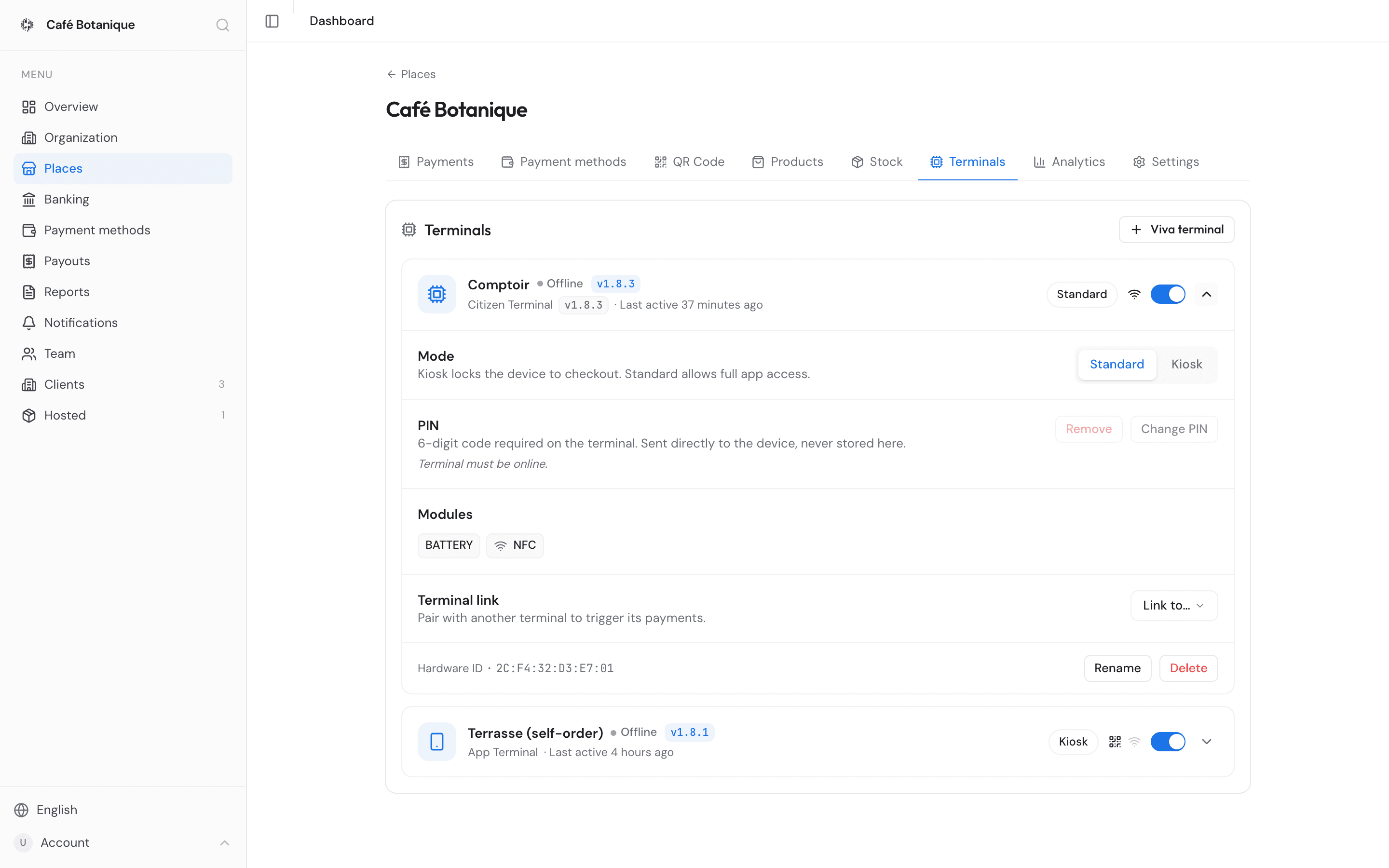
The Terminal tab holds the settings. What you see depends on the kind of terminal, and on whether you have switched on advanced controls: the everyday view keeps the name, the online dot, the Active switch, payment methods, display, Free vend in MDB mode and Rename. The device reads its mode and display settings when it starts up, so some changes only take hold after you restart it.
The page refreshes every 30 seconds while you are looking at it, so the online dot, the version and "last active" stay current. Only the status is refreshed — a section you have open and text you are half way through typing are left alone.
Basic and advanced controls
Everything that can take a terminal out of service — mode, the vending flow, the terminal link, the NFC token, the PIN, Maintenance, the automatic update hour, the device's module list and Delete — is hidden until you ask for it.
To switch it on, open the Account menu at the bottom of the sidebar and press Advanced terminal controls. A dialog asks "Enable advanced terminal controls?" and explains what you are taking on: "Advanced controls let you restart a terminal, push firmware to it and change how it drives the machine it is attached to. Any of these can take a terminal out of service until someone is standing in front of it. They are used at your own risk. You can switch them off again at any time." Press Enable to confirm. A checkmark then sits beside the menu entry, and every terminal page carries a small amber Advanced mode badge so you know which tools you are holding. Pressing the entry again switches it straight back off, with no confirmation.
It is a preference, not a permission
Switching advanced controls on grants you nothing you did not already have — it only shows controls you could always use. Whether an action is allowed is decided for each terminal regardless, which is why a terminal can show a View only badge instead of switches.
The choice is yours alone: it follows your own account across organizations and changes nothing for your colleagues. Technicians at a partner organization never see the switch — their whole job is this end of the dashboard, so they always have the full set.
Connection history
Connection history answers "has this machine actually been up?", which the online dot alone cannot. Pick Today, Last 7 days (the default) or Last 30 days and you get:
- Uptime — the share of the period the terminal was connected. It is a share of the time we know about; the caption underneath says how much of the window is Unknown.
- Longest outage — the longest single stretch it was away.
- Changes — how many times it went offline or came back.
Under the figures, a bar coloured along the period — green for online, grey for offline, hatched for unknown — and then the changes themselves, newest first, with the reason we recorded: Connected, Disconnected, Stopped responding or API restart.
API restart is not your terminal
When we deploy a new version of our service every terminal is disconnected and reconnects moments later. Those pairs read API restart rather than "Disconnected", so a routine deploy cannot be mistaken for a machine that dropped off the network.
A busy period holds more changes than we show at once; when that happens the oldest are left out and a line says so. "No status changes in this period." means it simply stayed as it was.
Notes
Maintenance notes is what one person leaves for the next one to open the machine: "card reader replaced, the old one had a bent pin", "do not restart before 10am, same breaker as the oven". Nothing here comes from the device — it is what people write.
Type into the box ("What should the next person to open this machine know?") and press Add note. A note is at most 2000 characters, and the counter under the box tells you where you are. Each note shows who wrote it, which organization they belong to, and when.
Your partner reads these
If a partner looks after your terminals, their technicians see these notes on the machines they service, and their notes show up here for you. Write them as a message to a colleague, and keep anything private out of them.
Not every note is typed. If a partner looks after your terminals, then from the moment the account is yours — you accepted their invitation, so nobody holds it for you any more — every change they make to one of your terminals writes a note here by itself: what changed ("Renamed from “Bar” to “Bar 2”", "Restarted the terminal", "Sent a new PIN"), who did it and when. If the technician typed a comment before making the change, it sits with that note, which is where you read why they did it.
This is not something your partner can switch off. It is the record of what was done to your machines, so it is written whether or not anyone thought to write it — a firmware push at 3am, a mode change you did not expect, a terminal deleted: all of it turns up in this list. Before you accepted their invitation the partner still held the account, and changes from that period are not in here.
Citizen Pay staff working on your machines are recorded the same way. The one difference is that they can decide a change does not deserve a note; the dashboard warns them that you will then not see what they changed. Either way the change itself is recorded on our side.
Your own people never produce these notes: when you or your admins change your own terminals, nothing is written — you already know what you did.
Mode (app terminals)
The Mode control gives you:
- Standard — the full app is available.
- Kiosk — the device stays locked on the checkout screen.
- MDB — offered on hardware with a vending (MDB) module; runs the terminal as a payment device for a vending machine. If you set MDB mode yourself, it takes effect the next time the terminal restarts.
A terminal with an MDB hat physically fitted stays in MDB mode: "This terminal has an MDB hat fitted, so it stays in MDB mode. Remove the hat to change the mode."
Vending machine flow (MDB mode)
In MDB mode you also choose how the terminal talks to the vending machine:
- Direct vend — for machines that send the sale as soon as the customer makes a selection.
- Credit first — opens a credit session first, so the machine will let the customer choose. Some machines need this, Jura coffee machines among them.
Your choice takes effect the next time the terminal restarts.
Free vend
Free vend gives the machine's products away: every selection is dispensed without payment. It is meant for an event, a tasting or coffee for your staff, without unplugging the terminal or keeping a card behind the counter. It is offered on any terminal in MDB mode, just under the vending machine flow, and it is an everyday control — you do not need advanced controls to see it. Owners and admins can switch it, and so can your partner's technicians while you allow Partner maintenance.
While it is on:
- The machine still asks for credit, and the terminal grants it at once. Nothing changes on the machine itself: it stays a cashless machine and asks the terminal on every selection. The customer simply sees no payment screen — the terminal reads "Free - make your selection" while it waits and shows a short "Enjoy!" after each vend.
- Every vend is still an order. It is recorded as paid, at €0, with the channel Free and the machine's selection number. You see it on the place's Payments tab, and Analytics keeps counting the units per product.
- Your money is untouched. A free vend is €0, so it adds nothing to your revenue or your payouts and carries no fees. There is nothing to refund on it either.
- A linked terminal does not wait for its partner. If the terminal normally has its card payments taken by a paired phone or card terminal, free vend leaves that device out altogether: the machine keeps serving even while the paired device is offline.
The switch is live. A connected terminal picks it up within seconds, with no restart, and one that is offline picks it up as soon as it reconnects. Free vend needs a recent firmware on the terminal; if it has not updated in a while, update it first (see Automatic update).
It applies to the live machine, immediately
Free vend is for events and staff use. The moment you switch it on, anyone standing at the machine can take whatever they like without paying, until you switch it off again — so turn it off as soon as the event is over. If a partner switches it on one of your terminals, a note records who did it and when.
Not the machine's own free-vend setting
Many coffee and vending machines have a free-vend mode of their own in their service menu. That one must stay off: with it, the machine stops asking the terminal and nothing is recorded. The dashboard switch keeps the machine in cashless mode and lets the Citizen Pay terminal grant the credit, so every vend is still counted. See Terminal with MDB.
Display (app terminals)
The Display section has two switches: Hide day balance (hides the running day total at the top of the terminal) and Hide place branding (hides the place image and name).
On a linked terminal — the lower half of a linked pair — you can also set an Idle message (up to 120 characters, your business name for example) and upload an Idle image (JPG or PNG up to 5 MB, such as your logo) in a Rounded or Square shape, with Replace and Remove buttons.
PIN (hardware Citizen Terminals)
You can ask a hardware terminal for a 6-digit code before it can be used. The PIN goes straight to the terminal and is never kept in the dashboard. Use Change PIN (type 6 digits, then Send to terminal) or Remove. The terminal has to be online — both buttons are greyed out while it shows Offline.
Maintenance
Maintenance acts on the machine in front of you, right now. The terminal has to be online — we can only hand a command to a device that is currently connected, and the buttons stay greyed out with "Terminal must be online." underneath while it is not.
- Restart (hardware terminals) — asks twice on purpose: the first press arms it, and the button becomes Confirm restart. A stray click should not reboot a terminal in the middle of a sale.
- Update firmware (hardware terminals) — installs the newest published build now instead of waiting for the automatic update hour. The section names the Installed and Latest versions, and says Up to date when they match. Asking anyway is harmless: it answers "Firmware is already up to date."
- Update app (phone and tablet terminals) — installs the update the app has already downloaded from the Play Store, then restarts itself. If nothing is downloaded yet it asks the Play Store there and then, and a staff member has to accept that once on the screen of the device.
One command at a time
After a command there is a short cooldown — roughly a minute. A second one too soon comes back with "This terminal was sent a command a moment ago. Try again in N s." Wait for the countdown rather than pressing again.
Automatic update
Automatic update is the hour of the day the terminal updates itself and restarts: firmware on a Citizen Terminal, the downloaded Play Store build on a phone or tablet. Pick an hour from the dropdown — whole hours, 00:00 to 23:00, Brussels time — and it saves straight away.
Choose an hour nobody is buying anything. The terminal restarts to finish the update, so 03:00 costs you nothing and 12:00 costs you a lunch rush.
Not set with "Not reported yet — the terminal sends its hour when it next connects." means we have not heard its current hour yet; picking one still works. A Viva card terminal has no software of ours to install, so it answers "This terminal has no update of ours to install, so there is no hour to set."
Payment methods and modules
On app terminals, two toggles decide how customers can pay: QR Code (they scan the code with their phone camera) and NFC (they tap a Citizen Pay card). Switching QR Code off removes the QR option for every currency, euros included, so a terminal whose only other way to pay is a paired card terminal shows just the card button. A third row, Card (Viva), is the card terminal paired with this phone: card payments are on exactly when one is paired, so there is no free-standing toggle any more. Paired, the row names it — "Paired with <name> <id>" — and offers Unpair. With card payments on and nothing paired, an amber note says "Card payments are on, but no card terminal is paired. Pair one so card sales taken on it are reported to this place.", with Pair with…, Register a new card terminal and Switch off. Off, the row reads "Off" and offers Pair with… when the place has an unpaired card terminal ("No unpaired card terminals in this place." when it has none) and Register a new card terminal.
Hardware terminals get the same QR Code and NFC switches, and the terminal offers whatever is on at its next payment: a QR code to scan, a screen asking the customer to tap their card, or both — the screen then reads "Scan or tap your card". A note under the Payment methods title says "Applies from the next payment on this terminal." A terminal that is running picks the change up straight away; one that is offline picks it up when it reconnects.
NFC can only be switched on when the device reports an NFC reader. Without one, the switch stays off and reads "This terminal has no NFC reader." One way of paying must always stay on, so the last switch that is on is locked and reads "At least one payment method must stay on."
There is no Card (Viva) row on a hardware terminal: card payments there go through the terminal link. A hardware terminal that is the Main terminal of a link hands every payment to its linked terminal and never shows a QR or waits for a tap itself, so instead of switches it reads "This terminal hands every payment to <name>, its linked terminal. Choose the payment methods on that terminal. With Advanced terminal controls on, the Modules list still shows what the device reports it has fitted (QR Code, NFC, MDB). You can read that list but not change it, and it says "No modules installed." when there's nothing.
Sell for other places
If your business has issued its own token, an app terminal can take card payments for other businesses as well as for its own place — one counter, several stands. The Sell for other places section sits on the Terminal tab, next to Payment methods, and needs no advanced controls. A business without a token sees a one-line hint here pointing to the Token page instead.
The section lists the places this terminal may sell for: its own place first, then every place of every business that has accepted your token and takes it at that place. The terminal's own place is always there, ticked, and cannot be unticked; you tick only the places of businesses that accepted your token. Tick the ones this terminal should offer and save. The change reaches the terminal straight away; one that is offline picks it up when it reconnects.
On the terminal, the place being sold for is always in view. A banner above the amount pad reads Selling for, with the place's picture, its name and the business it belongs to. The choice is sticky: the place stays selected for the next sales until the operator changes it, so a counter that sells for one stand all morning picks it once. Tapping the banner opens the place picker.
The picker fills the screen with a grid of large tiles, each with the place's picture, name and business. This place is pinned first, marked with a house; the others follow in the order they were last used. When there are more than eight places, a search box appears at the top. One tap on a tile selects that place and carries on with the sale.
A card sale then goes like this:
- The operator enters the amount — and, if they like, a note — or builds the order from the menu, as usual.
- The card button reads Card · <place name>. Pressing it charges the selected place directly: the Viva app opens with the amount for the customer to pay.
- If no place is selected yet — the first sale, after the app restarts, or because the selected place was removed from this terminal — pressing the card button opens the picker first. One tap on a place and the sale continues.
- When the payment goes through, the confirmation shows the amount and the place it was sold for.
The sale is booked on the selected place, with the note kept on it, and the terminal's recent orders show a For line naming that place. Sold for this place, it is an ordinary card sale in €; sold for another business, that business's place is credited in your token — see How the money flows.
When the payment does not go through cleanly, the terminal shows one of three messages:
- Card payment cancelled — the customer cancelled or the card was refused. The sale is removed.
- Card payment could not be confirmed — the Viva app reported a payment, but the terminal could not confirm it with Citizen Pay. The confirmation usually arrives a moment later: check the recent orders before charging the customer again.
- Card payment still pending — the Viva app handed back no result at all. The order stays in the recent orders as pending; wait for it to settle before charging the customer again.
A few things to know:
- Card payments only. QR and tap-to-pay payments on this terminal always go to its own place.
- Refunds work as usual. The Refund button on the terminal also works for card sales, including sales made for other places — see Refunds.
- No other place ticked, no banner. With only its own place, there is no banner and no picker: the card button works exactly as before and every sale goes to the terminal's own place.
- Places drop off on their own. A place leaves the list when its business stops accepting your token at that place, leaves your token, or is disconnected by you. After leaving or disconnecting the ticks are gone: if that business comes back later, tick its places again. A place whose token was merely switched off and on again can come back still ticked, so check the list.
Terminal link
Terminal link pairs two app terminals, so one can start a payment on the other — a till screen driving a customer-facing device, for example. Pick the other device from the Link to… dropdown, which lists every unpaired app terminal in your organization along with its place. The terminal you're editing becomes the Main terminal and the other becomes the Linked terminal. Unlink breaks the pair (and clears the linked terminal's NFC token). If the other device belongs to a different place, it shows as "Linked to <name>" rather than next to it in the table.
NFC token (linked terminals)
Tokens are member credit: someone tops up once, then spends it by tapping their card or badge. On a linked terminal that does tap to pay, the NFC token dropdown decides which token a tap charges when the main terminal starts the payment: None, or one of the on-chain tokens switched on for the place. You can't pick the € (SEPA) method here.
Renaming and deleting
At the bottom of the Terminal tab you'll find the Terminal ID (or Hardware ID) and a Rename option — edit the name in place and press Enter. Delete sits beside it once you have switched on advanced controls, and asks you to confirm with Yes, delete.
Deleting is permanent
Deleting archives and deactivates the terminal and removes it from the list. There is no way to restore it from the dashboard.
Moving to another place
Move to another place sits just above Delete in the terminal's settings, with advanced controls switched on. Owners and admins can use it, and so can the technicians of the partner who looks after your machines, while you allow it. Pick another place of the same business; moving a terminal to another business is not possible.
A terminal moves together with everything connected to it: its paired card terminal, the terminal or card terminal it is linked to, any other terminals linked to that same one, and their card terminals. The dashboard lists all of them and moves them at once. To move only one, unlink or unpair it first.
- Sales stay where they were made. Past sales stay with the place and terminal they were made at, and the old place's reports keep them. New sales count for the new place.
- Not during a payment. The move is refused while a payment is in progress on any of them; try again once it's done.
- The devices follow by themselves. POS apps reload the new place's menu and settings automatically, and Citizen Pay hardware terminals restart on their own to pick up the new place. A managed tablet moves with its terminal.
- Check the NFC token. If a terminal had an NFC token the new place doesn't accept, that setting is cleared; set it again for the new place.
Related pages
- Issued by Citizen Pay
- docs.citizenpay.eu
- Title
- Terminals
- Lang
- EN
- Sheet
- 021 / 035