Notifications
Pick the emails you want from an organization, and send stock and payout alerts to a Slack or Discord channel.
Notifications in the sidebar covers two separate things:
- My notifications — the emails you personally get from this organization. Nobody else is affected.
- Channel notifications — messages posted to a shared Slack or Discord channel, for the whole team.
Owners and admins can open this page. Members with the sales role can't.
Choosing your own emails
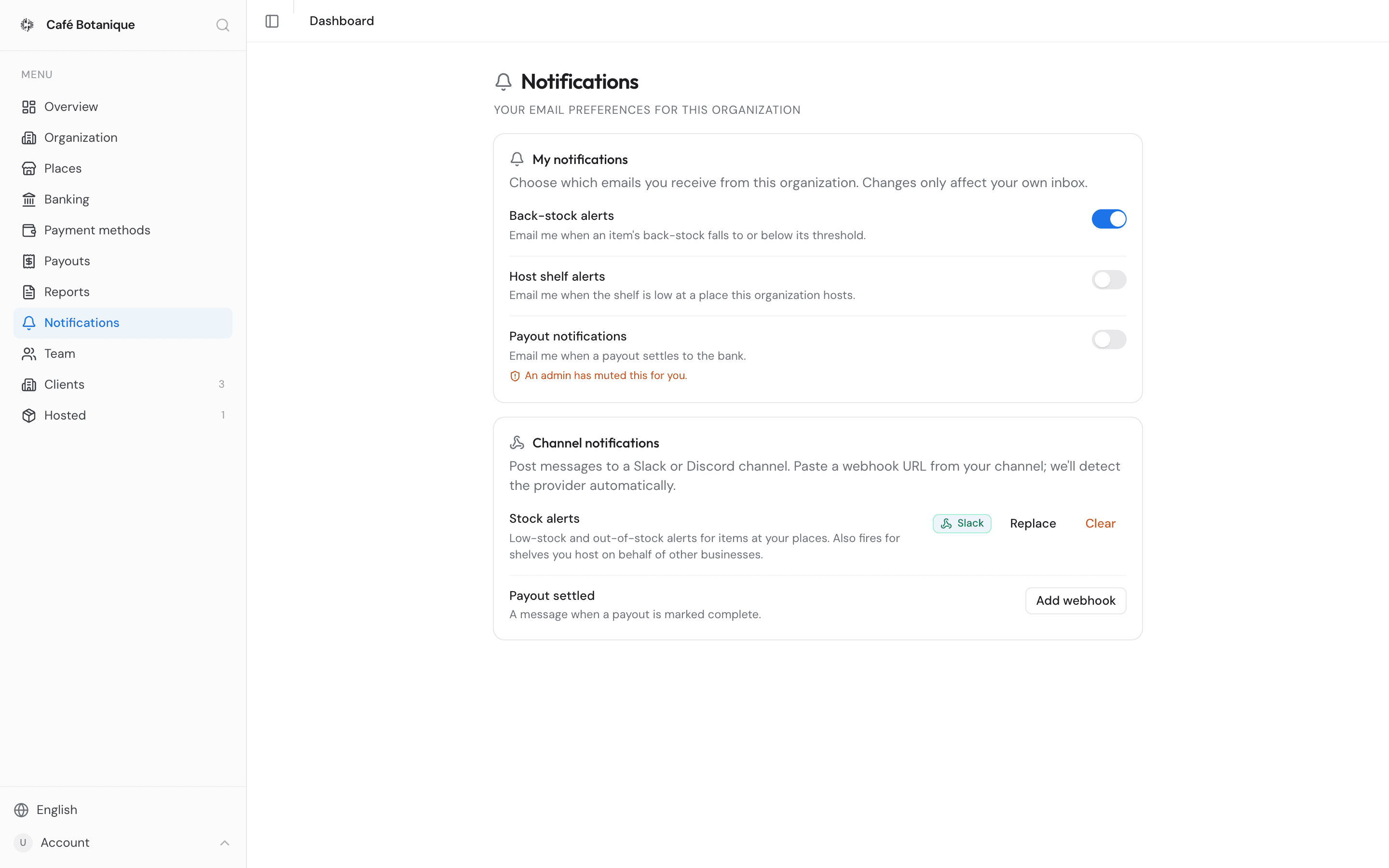
The My notifications card ("Choose which emails you receive from this organization. Changes only affect your own inbox.") has a switch for each kind of email:
- Back-stock alerts — "Email me when an item's back-stock falls to or below its threshold." See Products and stock.
- Host shelf alerts — "Email me when the shelf is low at a place this organization hosts." See Hosting.
- Payout notifications — "Email me when a payout settles to the bank." See Payouts.
All three start on. We only record the ones you have switched off, so a new team member is subscribed to everything from their first day. Each switch saves right away — you'll see a brief spinner. If it can't save, the switch flips back and shows an error.
If the card itself can't be loaded it shows whatever the server said in place of the switches, falling back to Something went wrong when there is nothing more specific. Reload the page.
These choices are yours alone, and only for this organization. Switching off payout emails doesn't touch anyone else on the team, and doesn't change what you get from any other organization you belong to.
An admin has muted this for you
If Citizen Pay has muted a notification type for you, an amber note reading An admin has muted this for you. appears under that toggle. You can still switch it back on yourself — doing so clears the mute.
Unsubscribing from an email
Every alert email carries an unsubscribe link, so you can stop a kind of email without going back into the dashboard. Following it opens a small page that tells you what it did.
For the emails on this page — back-stock, host shelf and payout — the link lands on a page that says You've been unsubscribed and names what has stopped: "You won't receive {type} emails from {business}." Underneath, "Re-enable any time from My notifications in your dashboard." Follow the same link twice and you get Already unsubscribed with the same summary. If the link has been revoked or is malformed you get Link not valid — "This unsubscribe link doesn't seem to be valid. The link may have been revoked."
Low-stock emails about a shelf you host for another business have their own footer link and their own page. It behaves the same way but talks about the one place: You've been unsubscribed, "You won't receive any more low-stock alerts for {place}.", with a Resubscribe in your dashboard link straight to that hosted place. Following it a second time gives Already unsubscribed — "You're not receiving low-stock alerts for {place}." A link we don't recognise at all shows Link not valid — "This unsubscribe link doesn't seem to be valid. You may have already used it or it was revoked." See Hosting for hosted shelves.
Nothing here is permanent: switching the toggle back on in My notifications — or, for a hosted shelf, on the place itself — starts the emails again.
Sending alerts to Slack or Discord
The Channel notifications card posts messages into a Slack or Discord channel you choose. This one isn't personal: any owner or admin can change it, and the messages go to the shared channel rather than to anyone's inbox.
You can send two kinds of message:
- Stock alerts — "Low-stock and out-of-stock alerts for items at your places. Also fires for shelves you host on behalf of other businesses."
- Payout settled — "A message when a payout is marked complete."
Each one needs a webhook URL — a link you create in your own Slack or Discord channel that lets the dashboard post into it. Paste the URL and the dashboard works out which service it is.
Add a webhook
- In Slack or Discord, create an incoming webhook for the channel you want the messages in, and copy its URL.
- On the Notifications page, find the row you want (Stock alerts or Payout settled) and press Add webhook.
- Paste the URL into the field that appears (something like
https://hooks.slack.com/services/...) and press Save — or Cancel to back out. Save stays greyed out until there is something in the field.
Only genuine Slack and Discord webhook URLs work. They start with hooks.slack.com/services/,
discord.com/api/webhooks/ or discordapp.com/api/webhooks/. Anything else is turned away with
We support Slack or Discord webhooks. If saving fails for some other reason, you'll see
Couldn't save.
Once it's saved, the row shows a green badge reading Slack or Discord, plus Replace and Clear buttons.
The webhook URL is treated like a password
After saving, the full webhook URL is never shown again — the dashboard only displays which provider is connected. Keep your own copy if you need it, and note that Replace always starts from an empty field.
Replace or remove a webhook
- Replace — opens the URL field again so you can paste a new one. Use it to point the messages at a different channel, or to switch between Slack and Discord.
- Clear — removes the webhook on the spot, with no confirmation. That channel stops getting messages immediately. You can add a new webhook whenever you like.
- Issued by Citizen Pay
- docs.citizenpay.eu
- Title
- Notifications
- Lang
- EN
- Sheet
- 032 / 035