Overview
Your home page — what to set up next, how much you have taken, where your payouts stand, and your latest payments.
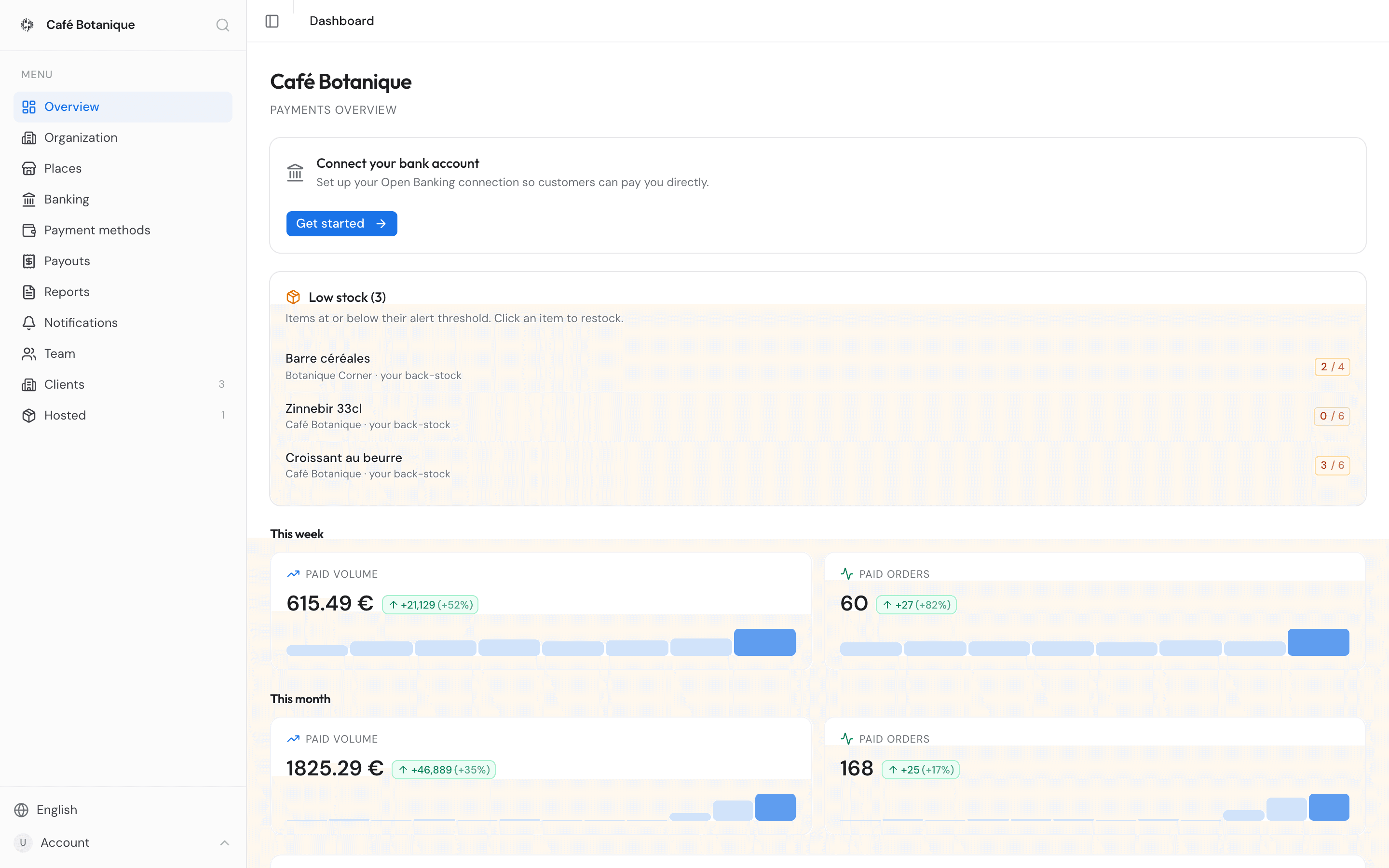
Overview is your home page. It opens the moment you pick an organization, headed with your commercial name and the words Payments overview, and it answers the questions you ask every morning. Anything waiting on me? How much did we take? When does the money land? What just got paid?
Working down the page: the set-up checklist, a heads-up about stock running low, your totals for the week and the month, where your payouts stand, how each place is doing, and your latest payments.
Everything is in euro. Owners and admins land here. Members with the sales role go to the Clients page instead.
Set-up
The card at the top of the page is your set-up checklist, headed Set-up with a count like 1/2 and a progress bar. One line per thing that has to be in place before you can take money and be paid.
What it asks for depends on your organization. By default it asks for two things — a Place and a Payment method — so the count reads 1/2 once one of them is done. The payment method counts as done as soon as any one of Viva, Stripe or your bank account is connected; you do not need all three. An organization paid in a token of its own (a city or community currency) has a payment method already, so it is not asked to connect any of the three.
Your organization can be asked for named connections instead, and for more than one of them at once: a list that asks for Viva and your bank account wants both, and gives you a line each. Anything beyond that is asked for only when it is on your organization's list. This is the full set of items your checklist can contain, in the order they appear:
| Item | What it wants | Where it takes you |
|---|---|---|
| Place | At least one place to take payments in | Places |
| Payment method | Connect Viva, Stripe or your bank account, or have a token enabled — one is enough | Payment methods |
| Bank account | Your bank connected so payment requests can be collected | Banking |
| Viva card terminal | Viva connected, its notifications on and a card terminal added — see below | Payment methods |
| Stripe | The Stripe connection, for card payments on your QR pages | Payment methods |
| Payment methods | At least one payment method enabled for the organization. Only Citizen Pay staff can change this — ask us | Payment methods |
| Payout email | The address that receives payout notifications | Payouts |
| Payment methods per place | Every place needs at least one payment method before it can take a payment | Places |
| Card payments per place | Card payments are switched off in some of your places | Places |
| Terminals | A terminal, to take payments on a machine | Terminals |
| Terminal connection | Your terminals should check in regularly | All terminals |
| Team | A colleague invited, so you are not the only one with access | Team |
| Notifications | A payout email or a Slack or Discord webhook, so alerts reach you | Notifications |
Anything still to do carries a short line saying what it needs and a link — Set up, Connect, Fix, Review, Invite — straight to the page that fixes it. Two of the lines count for you ("3 places without a payment method", "2 places with card payments switched off"), and the terminal line says "No terminal has been seen online for 7 days" when that is what it found. Items that are done say nothing further.
When everything on your list is settled the card folds itself into a single green line, Everything is set up. Press it to open it again; it stays the way you left it, per organization, in this browser. A list with nothing on it at all means no card: there is nothing left to ask you for.
Who decides what your checklist asks for
Not you — the list belongs to the account, and it is set for you:
- Your partner, if one onboarded you. They pick it when they create your account, and can change it afterwards from your client page.
- Citizen Pay, for any organization, from our admin console.
Whoever sets it works from the same control. Under Payment sit four toggles that combine: Any one, Viva, Stripe and Bank. Every connection ticked is one your organization has to have, so Viva and Bank together asks for both. Any one says that a single connection out of the three will do — or a token of the organization's own — and it will not sit alongside a named one: ticking Viva unticks Any one, and ticking Any one unticks the named ones.
More items (n) unfolds the rest of the list as checkboxes — Place, ticked from the start, then Payment methods, Payout email, Payment methods per place, Card payments per place, Terminals, Terminal connection, Team and Notifications. In our admin console the whole list is on show straight away.
While nothing has been chosen for your organization the control carries a Default tag, which means a place plus Any one. After a change, a Reset to default link puts it back.
Wherever the list is summarised — in a table, on a card — it comes down to a few words: "Viva + Bank", "Viva + Bank + 2 more", "Any payment method", "Default", or "Nothing" when every box is clear, and then there is no card to show.
If your checklist asks for something you will never need, or is silent about something you would like to keep an eye on, ask your partner or us to change it.
What the five states mean
- Done — a green tick. Connected, set, or otherwise in place.
- To do — an amber circle. We looked, and it is not there.
- Not applicable — a dash. The question does not arise; the terminal connection item is not applicable until there is a terminal.
- Could not check — a dashed circle, with "Could not check — this does not mean it is missing" under it.
- Marked not needed — a grey circle. You told us to leave it alone.
Could not check is not not connected
When a check cannot be answered — a service we ask is slow, a query fails — the item says Could not check and never To do. It is not a statement about your account: your bank may be perfectly well connected. Open the page itself to see where you really stand, or come back in a few minutes. If the whole card cannot be read it says "Could not check your set-up right now."
"Not needed"
Some items are a fair "no": the Viva terminal, Stripe, the payout email, card payments per place, the team and the notifications. When one of those is on your list, owners and admins get a small Not needed link on it while it is outstanding; press it and the item drops out of the count and goes grey as Marked not needed. Show again brings it back, and the count with it.
The rest cannot be dismissed — a business with no payment method enabled cannot take a payment at all, so there is nothing to wave away.
The dots in the sidebar
The same checklist puts a small marker next to the sidebar entries it concerns: an amber alert on a menu entry with something still To do, a faint dashed circle where a check could not be answered, and nothing at all when everything under that entry is settled — a sidebar full of green ticks is a sidebar nobody reads.
The markers follow your list like the card does. An item your checklist does not ask for puts no marker on its sidebar entry, however that part of your account stands.
Banking is the exception: it shows a green tick once the bank connection is live, because it is the one people come back to look at.
The bank account row
When your list asks for a bank account, that row says more than the others. Until your bank account is connected and payment requests are activated, it tells you which of four situations you are in. Whatever it says, its link takes you to the Banking page.
- Haven't started yet — Connect your bank account, "Set up your Open Banking connection so customers can pay you directly." Press Get started.
- Waiting on your bank — Bank authorization pending, "Your bank connection is waiting for authorization. Continue to complete the process." Press Continue setup.
- Bank connected, payment requests not activated yet — Activate payment requests, "Your bank is connected! Activate payment requests so customers can pay you." Press Activate now. Once you have asked for activation it reads "Your payment request activation is being verified. This usually takes a few minutes." and the button becomes Check status.
- Connection expired — Bank connection expired, "Your banking authorization has expired. Please reconnect to continue accepting payments." Press Reconnect.
Once banking is fully up and running the row is ticked off for good. The small icon next to Banking in the sidebar tells you the same thing.
The Viva card terminal row
The Viva card terminal row is done only when three things are true: Viva is connected, Viva's notifications are on, and a card terminal is added. Being connected is not enough — without the other two, your card payments do not show up here. Until then the row names the first thing missing:
- "Viva is not connected yet. Connect it to take card payments." — with Connect.
- "Viva is connected, but notifications from Viva are not on yet — without them your card payments don't show up here." — with Continue.
- "Viva is connected and sends notifications, but no card terminal is added yet." — with Continue.
The link opens the Take card payments steps on the Payment methods page, at the step you are on. If your business uses Viva, this row is on your checklist even if your list did not ask for it.
Stock running low
If any item you track has dropped to or below the level you set for alerts, you get a banner titled Low stock (N), with the note "Items at or below their alert threshold. Click an item to restock." It shows the five most recently alerted items; anything beyond that is folded into a + N more line.
Each line tells you three things:
- The item — click it to go to that place's Products page and restock.
- The place, and whose shelf it is — your back-stock means your own supply is low, while host shelf means the shelf at a business that stocks your products needs a delivery. See Hosting for how that works.
- How much is left against your alert level — red if you are at zero or below, amber otherwise.
No banner means nothing is low.
This week and This month
Two sections, This week and This month, each with the same two numbers:
- Paid volume — the total value of paid orders in that period.
- Paid orders — how many paid orders there were.
Alongside each number you also get:
- How it compares with the period before — a green up arrow or a red down arrow, with the change as an amount and as a percentage. Hover over it to see "vs previous period".
- A small bar chart — 8 weekly bars on the week cards, 12 monthly bars on the month cards, with the current period highlighted. Hover over a bar for its date and value.
Only paid orders count
These figures include only orders with status "paid". Each order counts towards the week or month it was completed (or, if there is no completion date, when it was created). Weeks start on Monday (UTC).
Where your payouts stand
Below the totals, a single line sums up your payouts:
- Pending payout — how much is waiting to be paid out, and how many pending payouts that covers.
- Last payout — the date your most recent completed payout was finalised.
- View payouts — takes you to the Payouts page.
You will not see this line at all if nothing is pending and no payout has ever completed.
How your places are doing
Places lists your active places, busiest first by paid volume, with columns Place, Paid orders, Paid volume and Last paid. Click any row to open that place, or use View all places for the full Places list.
No places yet? The section says "No places yet. Create one to start accepting payments." and offers a Create a place link.
Recent payments
Recent payments shows the last 10 paid orders across all your places:
| Column | What it tells you |
|---|---|
| Reference | The order's id, e.g. cp-order-1234 |
| When | Date and time the order was created |
| Place | Where the payment was taken |
| Method | The symbol of what the customer paid with ("—" if unknown) |
| Amount | The amount in euro |
The rows are not clickable. If nothing has been paid yet, it simply says "No payments yet."
When is the moment the order was started, not the moment it was paid. The week and month figures above bucket each order by when it was completed, so a payment can sit in this list under one date and count towards the period of another.
If the page does not look right
- A spinner and "Loading..." means your organizations are still being fetched — give it a moment.
- "Organization not found." means the address points at an organization you are not part of. Open the organization switcher (Cmd/Ctrl+K) and pick one of yours.
- If the figures cannot be loaded, an error message takes the place of everything below the banners — the week and month sections, the payout line, the Places table and Recent payments all go with it. When we have nothing more specific to tell you it reads "Failed to load overview". The two banners at the top are fetched separately and may still show.
- The set-up card says "Could not check" against something we have connected. The checklist asks a service where you stand, and when that question goes unanswered it says so rather than guessing. Nothing has been undone — open the page itself (for example Banking) to see your real status, or reload in a few minutes.
Related pages
- Issued by Citizen Pay
- docs.citizenpay.eu
- Title
- Overview
- Lang
- EN
- Sheet
- 017 / 035