Organization
Check your business details on file — legal name, address, payout account and verification status — and, as an owner, change the payout IBAN.
The Organization page is your business's record with Citizen Pay: the legal and financial details you (or your partner) gave when the organization was set up. You can read them here; the only thing you can change is the payout IBAN, and only if you're an owner. The heading is your commercial name, with "Organization profile" underneath.
Owners and admins can open this page. Sales members in partner organizations get sent to the Clients section instead.
Status badge
Next to the heading, a badge tells you where your organization stands:
- Pending (amber, clock icon) — created, but Citizen Pay hasn't verified it yet.
- Verified (green, check icon) — reviewed and verified.
- Demo (violet, sparkles icon) — a demonstration organization.
Those three are the ones we translate. Any other status shows as a plain grey badge carrying the
status name itself, tidied up on the way out: underscores become spaces and it is capitalized, so
pending_review reads as Pending review.
New organization?
A newly created organization starts as Pending. While pending you can already explore the dashboard and set things up — see Getting started for what to do first.
Organization Information
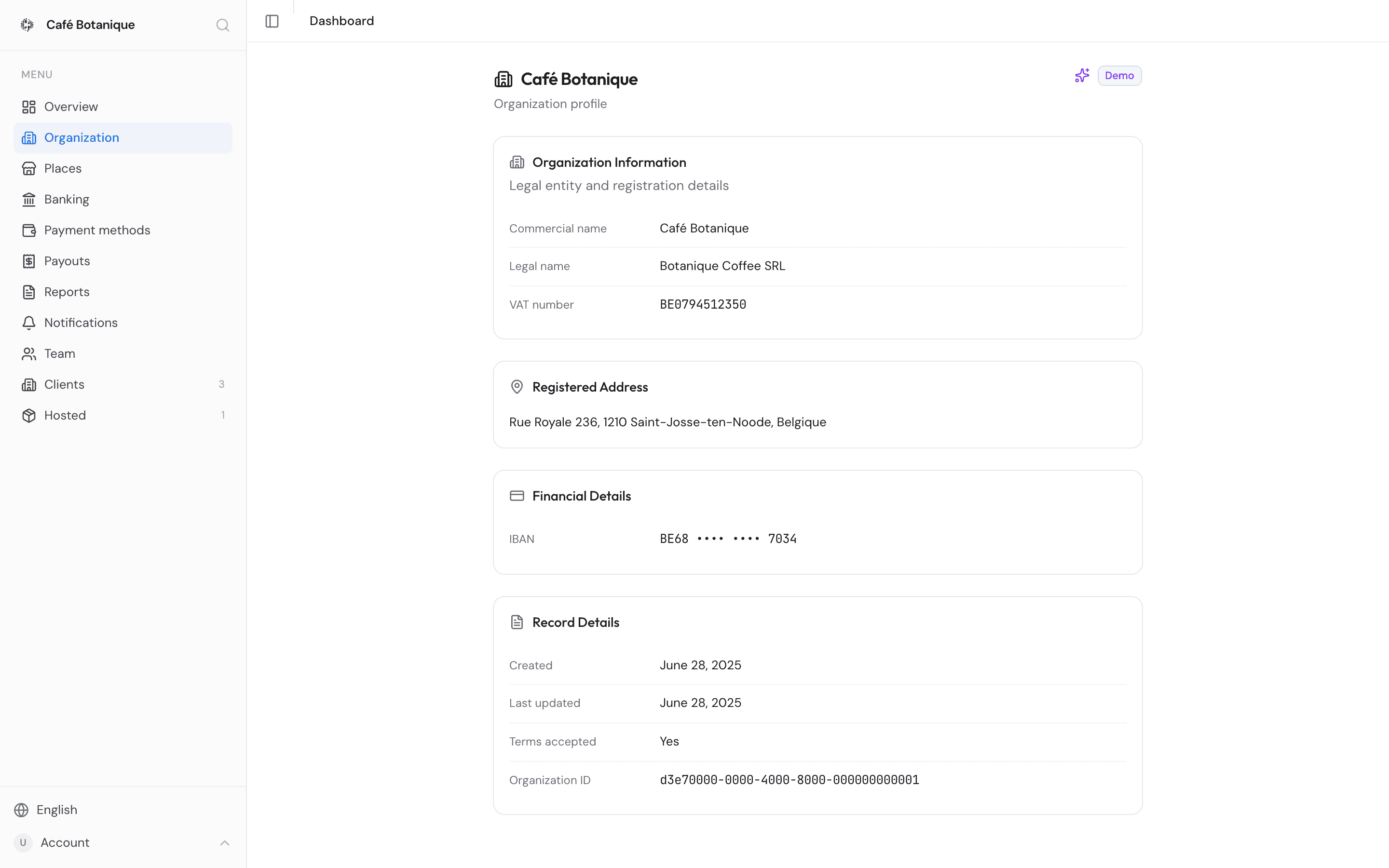
The Organization Information card ("Legal entity and registration details") holds:
- Commercial name — your trading name, the one shown across the dashboard and to customers.
- Legal name — your registered legal entity name.
- VAT number — shown in a monospace font.
Anything that hasn't been filled in shows as an em dash (—). That goes for every labelled row on this page, not just this card.
Registered Address
The Registered Address card shows your legal address as plain text. If there isn't one on record, the card says "No address on file".
Financial Details
The Financial Details card shows the IBAN your payouts go to. For safety it's masked: you see the first four characters, then groups of dots, then the last four — laid out in spaced blocks so it still reads like an IBAN. A value shorter than 12 characters shows at most its last four characters.
Changing the payout IBAN
If you're an owner of the organization, the Financial Details card has an Edit button — Add IBAN when no IBAN is on file yet. Admins see the card as before, without the button.
- Press Edit (or Add IBAN).
- Type the new IBAN. The current one is shown masked for reference, but it is never filled in for you — you type the new one in full.
- The IBAN is checked for validity: a wrong length, a mistyped character or a bad check digit is flagged before you can continue. Typing the IBAN that is already on file is refused too.
- A confirmation shows the old IBAN (masked) next to the new one and reminds you that future payouts go to the new account. Confirm, and the change is saved.
If someone else changed the IBAN while you were editing, you're asked to reload the page and start again from the IBAN now on file.
A few things to know:
- You can replace the IBAN, but not remove it — there is always an account to pay out to once one is on file.
- Every owner and every admin of the organization gets an email saying the IBAN was changed and by whom, and so does the address set for payout emails (the one on file before the change), if there is one. Citizen Pay is notified of every change too, and it is recorded in the audit trail.
- A payout that has not been paid yet is paid to the new account — including one that is already pending, and one whose bank payment is still waiting for a signature. Only payments already signed went to the old account.
Want to know where payouts actually went and when? That's the Payouts page. Bank connections and payment requests live on Banking.
Record Details
The Record Details card covers the administrative side:
- Created — when the organization was created.
- Last updated — when its details last changed.
- Terms accepted — Yes or No, whether the terms of service have been accepted.
- Organization ID — your unique identifier, a long code in monospace. Quote it when you contact support and they'll find you straight away.
Can I edit these details?
Only the payout IBAN, and only as an owner — see Changing the payout IBAN. Everything else on this page is read-only, whatever your role: neither owners nor admins can change the commercial name, legal name, VAT number or address from the dashboard.
Those details are set when the organization is created — during signup, or by the partner who set you up — and can't be changed here afterwards. If something's wrong or has changed (you've moved, say, or renamed the business), contact Citizen Pay support and we'll correct the record. There is no form or request button in the dashboard for this. Quote your Organization ID from the Record Details card and we'll find you straight away.
If the page does not look right
- A spinner and "Loading..." means the details are still being fetched — give it a moment.
- "Organization not found." means the address points at an organization you are not part of. Open the organization switcher (Cmd/Ctrl+K) and pick one of yours.
- "Failed to load organization details." means the record could not be read. Reload the page, and if it keeps happening contact Citizen Pay support.
Closing your organization
Stopping with Citizen Pay altogether? The owner asks Citizen Pay support to close the organization, and support closes it. There is no button for this in the dashboard. Quote your Organization ID from the Record Details card and we'll find you straight away.
What is kept — none of your records or history is deleted or archived:
- All history: orders, payouts, invoices and reports.
- Your team, places, terminals, products, API keys and settings.
- Sales that have already settled are still paid out, in the following payout(s), without the usual payout email.
- The invoice for the current month is still issued and emailed to you.
What stops while the organization is closed:
- Nobody on the team, the owner included, can open the organization in the dashboard. The partner who installed your hardware can't either. Team members who open it while it is closed see a screen titled "<your organization's name> is closed" instead of the dashboard.
- Places and terminals refuse payments and connections, so QR checkout, card checkout and the Pay
POS app stop working. Your checkout links answer Page not found, never that the organization
is closed, and each checkout address — the last part of the link
(
my-placein…/my-place) — becomes free for someone else to use. - Badge API keys stop working.
- Notification emails, such as payout notifications and low-stock alerts, are paused, and so are Slack and Discord alerts.
What is disconnected for good: the Viva, Stripe and bank connections are removed on our side. If your bank is connected through Ponto, we also revoke Citizen Pay's access there; if it still shows in your Ponto dashboard, you can revoke it yourself.
Your subscription is cancelled under the end-of-month rule, the same way as when you close the billing account: everything runs to the end of the current month, and the last invoice arrives on the 1st. Invoices that are still unpaid remain due.
A few things are up to you:
- Connected Viva by entering your credentials yourself? Remove the Citizen Pay webhooks in your Viva portal — see Connect your Viva card terminals.
- Leasing a terminal? Return it — see Leases.
A closed organization can be reopened
Ask Citizen Pay support to reopen it. Team access, places, terminals and API keys work again straight away, and notification emails and Slack and Discord alerts resume, but the payment connections and billing start from scratch: Viva, Stripe and your bank have to be connected again, and billing set up again. Each place gets its checkout address back if nobody has taken it in the meantime; otherwise its old QR codes and links no longer reach it — choose a new address under QR code link and print new QR codes.
- Issued by Citizen Pay
- docs.citizenpay.eu
- Title
- Organization
- Lang
- EN
- Sheet
- 031 / 035