Banking
Connect your bank account and activate payment requests so customers can pay you.
Banking is where you link your bank account to Citizen Pay and switch on payment requests. Do both and your customers can pay you straight from their own banking app — scan the code, approve, done. Until both are finished, they cannot pay you at all, so this is the first thing to get out of the way with a new organization.
You approve the connection on your bank's own website. The dashboard never asks for your online-banking login, and never sees it.
Banking is for owners and admins. Members with the sales role do not see the Banking link.
Three steps
The page is headed Banking Setup, with "Connect your bank account and activate payment requests for" and your commercial name underneath. Below that you will see where you are: 1 Connect bank, 2 Authorize, 3 Payment requests. Finished steps get a green check, the one you are on is highlighted. A brand-new organization starts at step 1. While the page is still working out where you stand it says Checking your connection status...
Step 1 — Connect your bank account
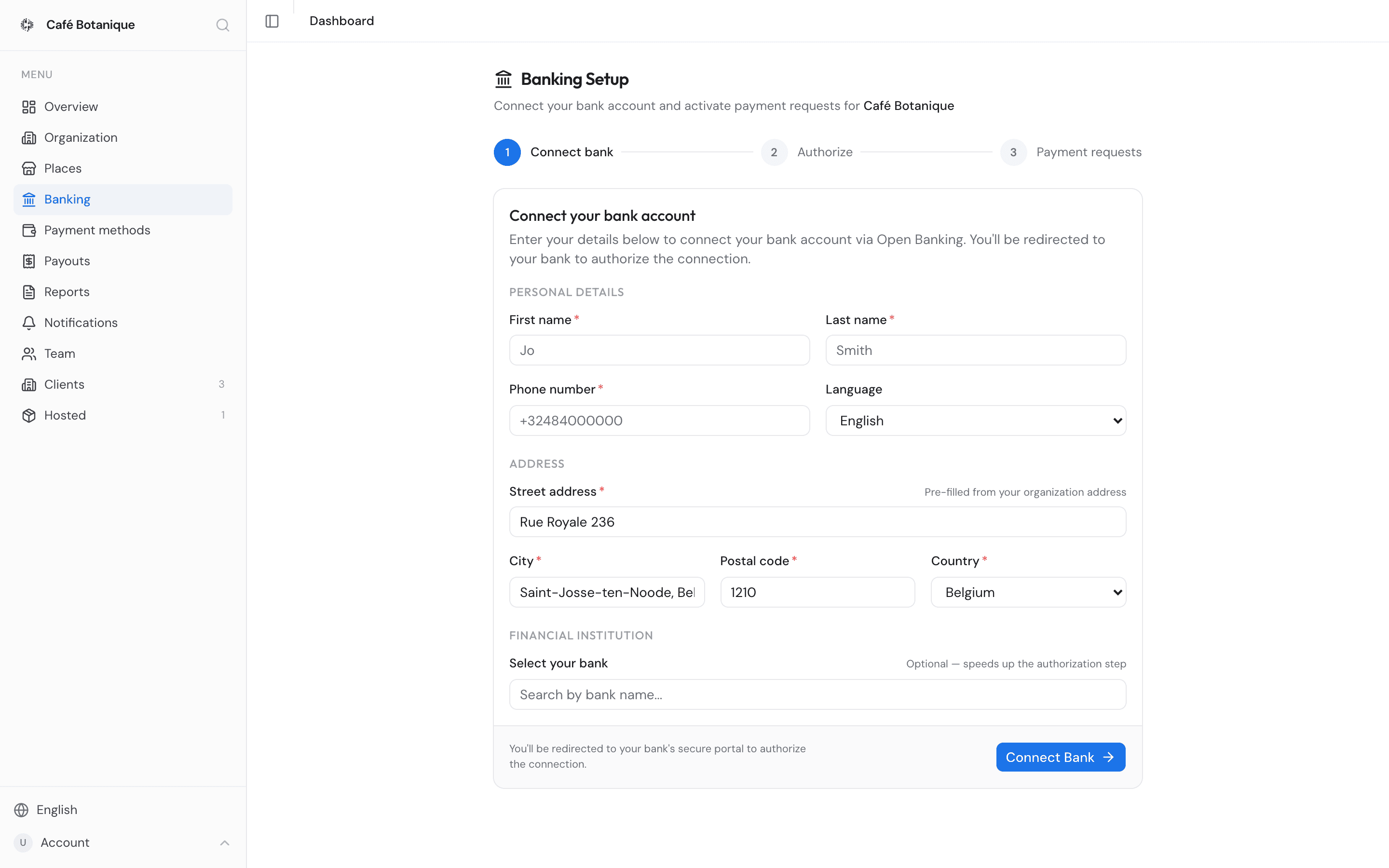
The Connect your bank account card collects what your bank needs. When you are done, it sends you to your bank to approve the connection.
- Fill in your Personal details: First name, Last name, Phone number, and a Language (English, French or Dutch — this is the language your bank's page will be in). Language starts on English whatever language you are using the dashboard in.
- Check the Address section: Street address, City, Postal code and Country. The street address is pre-filled from your organization's legal address, as the hint next to it says: "Pre-filled from your organization address". If that address ends in a Belgian-style four-digit postcode followed by a town, it is split across all three fields for you; if it does not, the whole address lands in Street address and you fill in City and Postal code yourself. The country list covers EU/EEA countries plus Switzerland and the United Kingdom, and starts on Belgium.
- Pick your bank under Financial institution using the Select your bank search. It is optional — the hint says "Optional — speeds up the authorization step". The list holds the 200 most popular institutions and the dropdown only ever shows the first 30 matches, so type into Search by bank name... rather than scrolling for yours. Nothing matching gives No matching banks; a list that came back empty gives No banks available. Picked the wrong one? Use the Change link.
- Press Connect Bank. The button reads Redirecting... and your browser goes to your bank's secure page, carrying the details you just filled in — as the note beside the button puts it, "You'll be redirected to your bank's secure portal to authorize the connection."
- Approve it at your bank. You come straight back to the dashboard.
Everything except the language and the bank picker is required: those labels carry a red asterisk, and leaving one blank marks the field in red with Required underneath. If the bank list will not load you get "Could not load banks. You can continue without selecting one." — so carry on without picking one.
Step 2 — Waiting for authorization
After you come back you will see the Waiting for authorization card and an amber Authorization in progress banner. Finish approving at your bank — the Continue authorization button takes you back there if you closed the tab. The page keeps an eye on the status for you and updates on its own. There is also a Refresh status button if you would rather not wait.
Step 3 — Activate payment requests
Once the connection is live, the Bank connected card appears, with a green Bank connection active line and "One more step — activate payment requests so customers can pay you directly." That is what lets you ask a customer's bank to pay you.
- Press Activate Payment Requests. You are sent to your bank to approve it.
- The card then reads Verification in progress. It is usually a few minutes, though it can take up to 48 hours. The page updates on its own — no need to sit and watch it.
Some connections also offer a Continue in Open Banking Dashboard button on this card. It is not part of activating payment requests: it opens your organization's page at dashboard.myponto.com — Ponto, the open banking provider behind the connection — in a new tab. It only appears when your connection has a Ponto organization on file, and you can finish the setup without ever pressing it. It also goes away the moment you request activation — the card switches over to the verification notice — so if you did want it, open it before pressing Activate Payment Requests.
Taking longer than 48 hours?
Contact support if your payment request activation is not approved within 48 hours.
You're all set
With both parts done, you get a green You're all set! card and two green checkmarks: Bank connected and Payment requests active. Customers can pay you now, and Banking in the sidebar turns to a green check.
What the sidebar icon means
The Banking entry usually carries a small icon, so you can tell at a glance where you stand:
- Green check — connected and payment requests active. Nothing to do.
- Amber clock — still in progress: either waiting for authorisation, or connected but payment requests not active yet.
- Red alert — the connection has expired. Reconnect.
- Grey dot — not connected yet.
- No icon at all — the status has not come back yet, or the check failed. Open the page to see where you really stand.
If your connection expires or drops
Bank authorisations do not last forever. When yours expires, the three-step indicator disappears — there is nothing left to walk through — and the setup steps are replaced by a red-bordered card: "Your banking connection has expired. Please reconnect to continue accepting payments." Inside it, a red Re-authorization required banner adds "Your existing connection details are still on file. Simply re-authorize to restore your banking connection." So there is no form to fill in again — press Reconnect bank, re-approve at your bank, and you are back. The sidebar shows a red alert until you do.
If the connection was disconnected instead, you land back on the step 1 form with the note "Your banking connection was disconnected. Reconnect to resume payment processing." Fill it in and connect again as before.
If something fails along the way, a Something went wrong card shows what happened. Try again, and contact support if it keeps happening.
If your business issues a treasury
Some businesses issue their own community currency — a treasury. If yours does, a blue notice at the top of the Banking page reads This business operates a treasury and names the treasury and its symbol. Issue more than one and the notice names the first, then counts the rest as +{count} more.
The notice explains why it is there: "Payouts are sent from your treasury through this banking connection. Enable payment initiation below so transfers can be initiated."
If your business does not issue a treasury, you will never see this notice or the card below it, and there is nothing extra to do.
Payment initiation
Payouts leave your treasury through your bank connection, so you need one extra permission on top of payment requests: payment initiation, which lets transfers be sent out of your connected account. Its own card sits at the bottom of the page and describes itself as "Payment initiation lets you send payouts from your treasury directly through your connected bank account. You'll be redirected to your bank to authorize it."
- Before your bank is connected, the card just reminds you: "Connect your bank account above before enabling payment initiation."
- Once connected, it shows a green Bank connection active beside an Enable payment initiation button. Press it and approve at your bank.
- While it is being checked you see an amber Payment initiation activation in progress notice. Like payment requests, this can take up to 48 hours and the page updates on its own. Contact support if it takes longer.
- When it is through, the card shows a green Payment initiation active and "You can now send payouts from your treasury through your connected bank account."
- Issued by Citizen Pay
- docs.citizenpay.eu
- Title
- Banking
- Lang
- EN
- Sheet
- 026 / 035